<?xml version="1.0" encoding="utf-8"?><feed xmlns="http://www.w3.org/2005/Atom" ><generator uri="https://jekyllrb.com/" version="3.9.5">Jekyll</generator><link href="https://dpzhu.me/atom.xml" rel="self" type="application/atom+xml" /><link href="https://dpzhu.me/" rel="alternate" type="text/html" /><updated>2024-03-16T02:46:28+00:00</updated><id>https://dpzhu.me/atom.xml</id><title type="html">NOPE</title><subtitle>Show me your model</subtitle><author><name>Dongping Zhu</name></author><entry><title type="html">Snippet Tmux configuration</title><link href="https://dpzhu.me/archives/tmux-configuration.html" rel="alternate" type="text/html" title="Snippet Tmux configuration" /><published>2024-03-02T17:41:00+00:00</published><updated>2024-03-02T17:41:00+00:00</updated><id>https://dpzhu.me/archives/tmux-configuration</id><content type="html" xml:base="https://dpzhu.me/archives/tmux-configuration.html"><![CDATA[<p><img src="/uploads/images/0000/Snippet.jpg" alt="Snippet" />
The configuration for tmux</p>

<!-- more -->

<div class="language-bash highlighter-rouge"><div class="highlight"><pre class="highlight"><code><span class="nb">bind </span>h <span class="k">select</span><span class="nt">-pane</span> <span class="nt">-L</span>
<span class="nb">bind </span>j <span class="k">select</span><span class="nt">-pane</span> <span class="nt">-D</span>
<span class="nb">bind </span>k <span class="k">select</span><span class="nt">-pane</span> <span class="nt">-U</span>
<span class="nb">bind </span>l <span class="k">select</span><span class="nt">-pane</span> <span class="nt">-R</span>
setw <span class="nt">-g</span> mode-keys vi
<span class="nb">set</span> <span class="nt">-sg</span> escape-time 0

<span class="c">### use C-w to replace C-b</span>
<span class="c"># bind &lt;prefix&gt; to C-w</span>
<span class="c"># unbind C-b</span>
<span class="c"># set-option -g prefix C-w</span>
<span class="c"># bind-key C-w send-prefix</span>

<span class="c">### use &lt;prefix&gt; s for horizontal split</span>
<span class="nb">bind </span>s split-window <span class="nt">-v</span>

<span class="c">### use &lt;prefix&gt; v for vertical split</span>
<span class="nb">bind </span>v split-window <span class="nt">-h</span>
<span class="nb">bind</span> <span class="nt">-n</span> M-Left <span class="k">select</span><span class="nt">-pane</span> <span class="nt">-L</span>
<span class="nb">bind</span> <span class="nt">-n</span> M-Right <span class="k">select</span><span class="nt">-pane</span> <span class="nt">-R</span>
<span class="nb">bind</span> <span class="nt">-n</span> M-Up <span class="k">select</span><span class="nt">-pane</span> <span class="nt">-U</span>
<span class="nb">bind</span> <span class="nt">-n</span> M-Down <span class="k">select</span><span class="nt">-pane</span> <span class="nt">-D</span>

<span class="c">### resize panes more easily</span>
<span class="nb">bind</span> &lt; resize-pane <span class="nt">-L</span> 10
<span class="nb">bind</span> <span class="o">&gt;</span> resize-pane <span class="nt">-R</span> 10
<span class="nb">bind</span> - resize-pane <span class="nt">-D</span> 10
<span class="nb">bind</span> + resize-pane <span class="nt">-U</span> 10

<span class="c">### force tmux to use 256 color</span>
<span class="nb">set</span> <span class="nt">-g</span> default-terminal <span class="s2">"screen-256color"</span>
</code></pre></div></div>]]></content><author><name>Dongping Zhu</name></author><category term="Snippets" /><category term="Snippets" /><summary type="html"><![CDATA[The configuration for tmux]]></summary></entry><entry><title type="html">Snippet GDB cheat sheet</title><link href="https://dpzhu.me/archives/gdb-cheat-sheet.html" rel="alternate" type="text/html" title="Snippet GDB cheat sheet" /><published>2024-02-17T09:30:15+00:00</published><updated>2024-02-17T09:30:15+00:00</updated><id>https://dpzhu.me/archives/gdb-cheat-sheet</id><content type="html" xml:base="https://dpzhu.me/archives/gdb-cheat-sheet.html"><![CDATA[<p><img src="/uploads/images/0000/Snippet.jpg" alt="Snippet" />
The command for GDB debug</p>

<!-- more -->

<div class="language-bash highlighter-rouge"><div class="highlight"><pre class="highlight"><code><span class="c"># Start GDB with a core file</span>
gdb program corefile

<span class="c"># Show backtrace</span>
bt

<span class="c"># Check local variables</span>
info locals

<span class="c"># Check arguments</span>
info args

<span class="c"># Navigate through stack frames</span>
frame 1

<span class="c"># List the souce code</span>
list

<span class="c"># Inspect memory</span>
x/8x 0x12345678

<span class="c"># Step over</span>
n

<span class="c"># Step into</span>
s

<span class="c"># Step out</span>
finish

<span class="c"># Quit</span>
q
</code></pre></div></div>]]></content><author><name>Dongping Zhu</name></author><category term="Snippets" /><category term="Snippets" /><summary type="html"><![CDATA[The command for GDB debug]]></summary></entry><entry><title type="html">Key West, Florida</title><link href="https://dpzhu.me/archives/photo-keywest-florida.html" rel="alternate" type="text/html" title="Key West, Florida" /><published>2023-12-18T17:10:21+00:00</published><updated>2023-12-18T17:10:21+00:00</updated><id>https://dpzhu.me/archives/photo-keywest-florida</id><content type="html" xml:base="https://dpzhu.me/archives/photo-keywest-florida.html"><![CDATA[<p><img src="/uploads/images/2023/FloridaKeyWest1.jpg" alt="Key West, Florida" /></p>

<p><img src="/uploads/images/2023/FloridaKeyWest2.jpg" alt="Key West, Florida" /></p>

<p><img src="/uploads/images/2023/FloridaKeyWest3.jpg" alt="Key West, Florida" /></p>

<p><img src="/uploads/images/2023/FloridaKeyWest4.jpg" alt="Key West, Florida" /></p>

<p><img src="/uploads/images/2023/FloridaKeyWest5.jpg" alt="Key West, Florida" /></p>

<p><img src="/uploads/images/2023/FloridaKeyWest6.jpg" alt="Key West, Florida" /></p>]]></content><author><name>Dongping Zhu</name></author><category term="[&quot;Photos&quot;]" /><category term="Photos" /><summary type="html"><![CDATA[Key West, Florida]]></summary></entry><entry><title type="html">Homemade laser power meter</title><link href="https://dpzhu.me/archives/laser-power-meter.html" rel="alternate" type="text/html" title="Homemade laser power meter" /><published>2022-01-26T19:46:55+00:00</published><updated>2022-01-26T19:46:55+00:00</updated><id>https://dpzhu.me/archives/laser-power-meter</id><content type="html" xml:base="https://dpzhu.me/archives/laser-power-meter.html"><![CDATA[<p><img src="/uploads/images/0000/Laser.jpg" alt="Laser" />
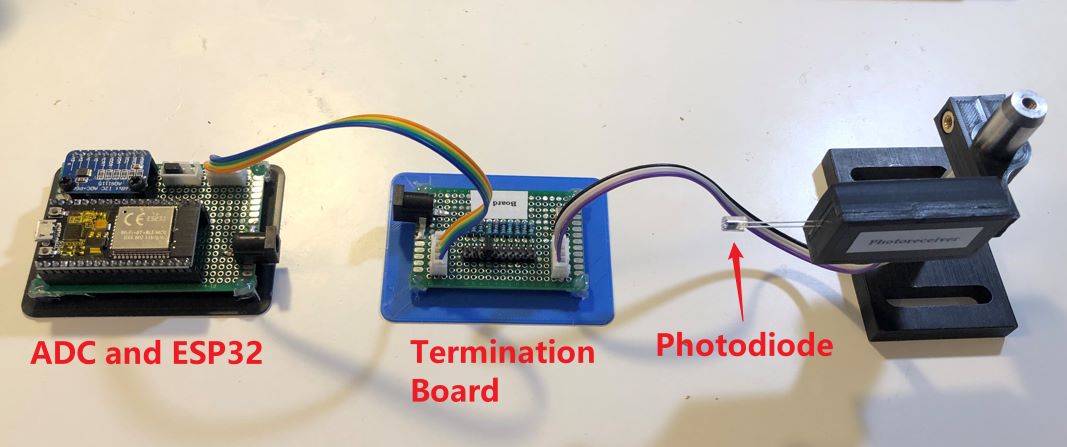
I made a simple laser power meter. The results are pretty good. I measured my own Uniphase helium-neon laser, the results show the laser power is around 0.68 to 0.70 mW. The value is consistent with the measured results from Coherent LaserCheck. The laser power meter consists of three parts: the photodiode, termination board, and circuit board. Here is the photo of this laser power meter.</p>

<!-- more -->

<p><img src="/uploads/images/2022/LaserPowerMeter1.jpg" alt="Project setting" /></p>

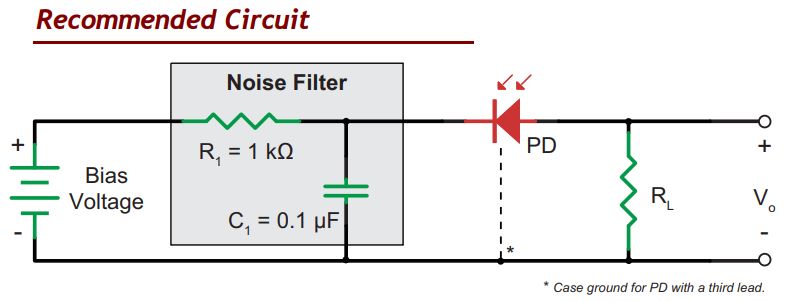
<p>The photodiode is SFH 206 K obtained from <a href="https://www.newark.com/ams-osram-group/sfh-206-k/photo-diode-850nm-t-1-3-4/dp/94AC4974?st=sfh%20206%20k">Newark</a>. The photodiode is directly soldered on a small prototype PCB in the black box. I did not take a photo inside the black box before I used superglue to glue the box. The internal circuit is the recommended circuit from <a href="https://www.thorlabs.com/thorproduct.cfm?partnumber=FD11A">Thorlabs</a>, as shown in the following figure. I use a 1k ohm resistor and 0.1 μF capacitor as the noise filter. The bias voltage and the termination resistor are wired out to the termination board.</p>

<p><img src="/uploads/images/2022/LaserPowerMeter2.jpg" alt="Circuit" /></p>

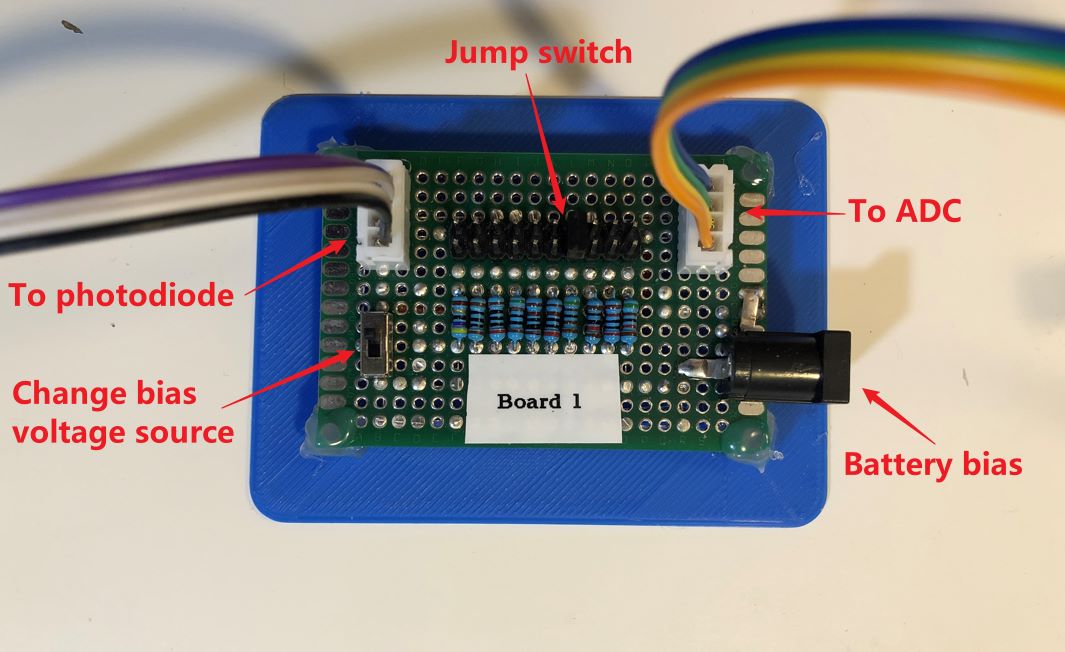
<p>Here is the detail of the termination board. There are several termination resistors that can be selected based on the position of the jump switch. If the frequency response does not matter, a large termination resistor can be selected so that the transimpedance amplifier can be saved. I use 10 resistors ranging from 50 ohms to 50k ohms. A large resistor such as 50k ohms here may not be necessary. I also put a small slide switch here. Therefore, the bias voltage for the photodiode can be selected either from the battery or the ESP32.</p>

<p><img src="/uploads/images/2022/LaserPowerMeter3.jpg" alt="Transimpedance" /></p>

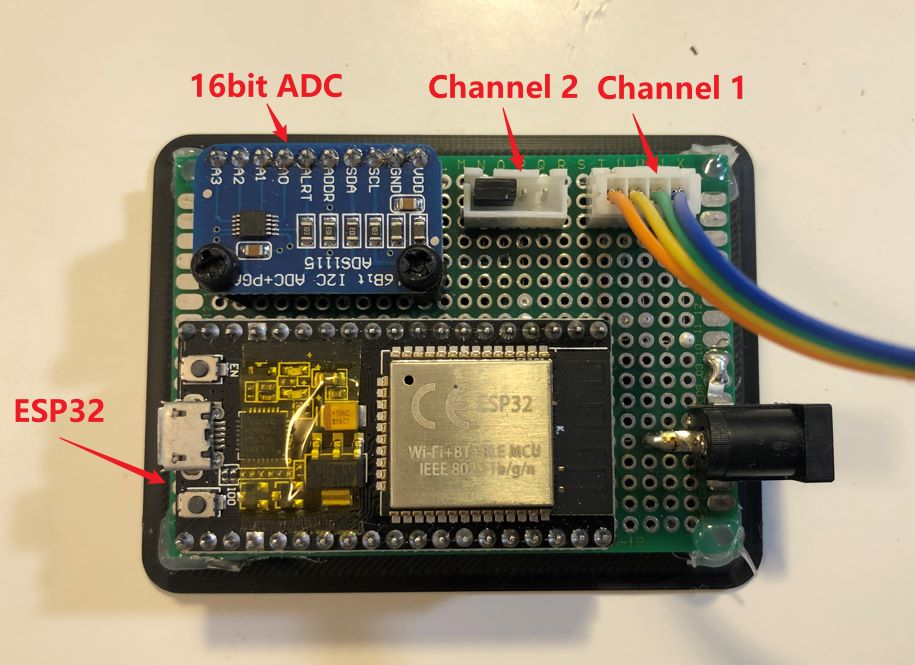
<p>The signal is processed by a 16bit ADC (ADS1115) breakout board. ADS1115 communicates with ESP32 with the I2C protocol. The ESP32 is configured as an access point (AP) mode for the webserver. With AP mode, the router is not required here. I can directly connect to the Wi-Fi network sent by ESP32. ADS 1115 measures the voltage from the termination resistors and then the ESP32 calculates the laser power based on the measured voltage. The details will be given below.</p>

<p><img src="/uploads/images/2022/LaserPowerMeter4.jpg" alt="ADC" /></p>

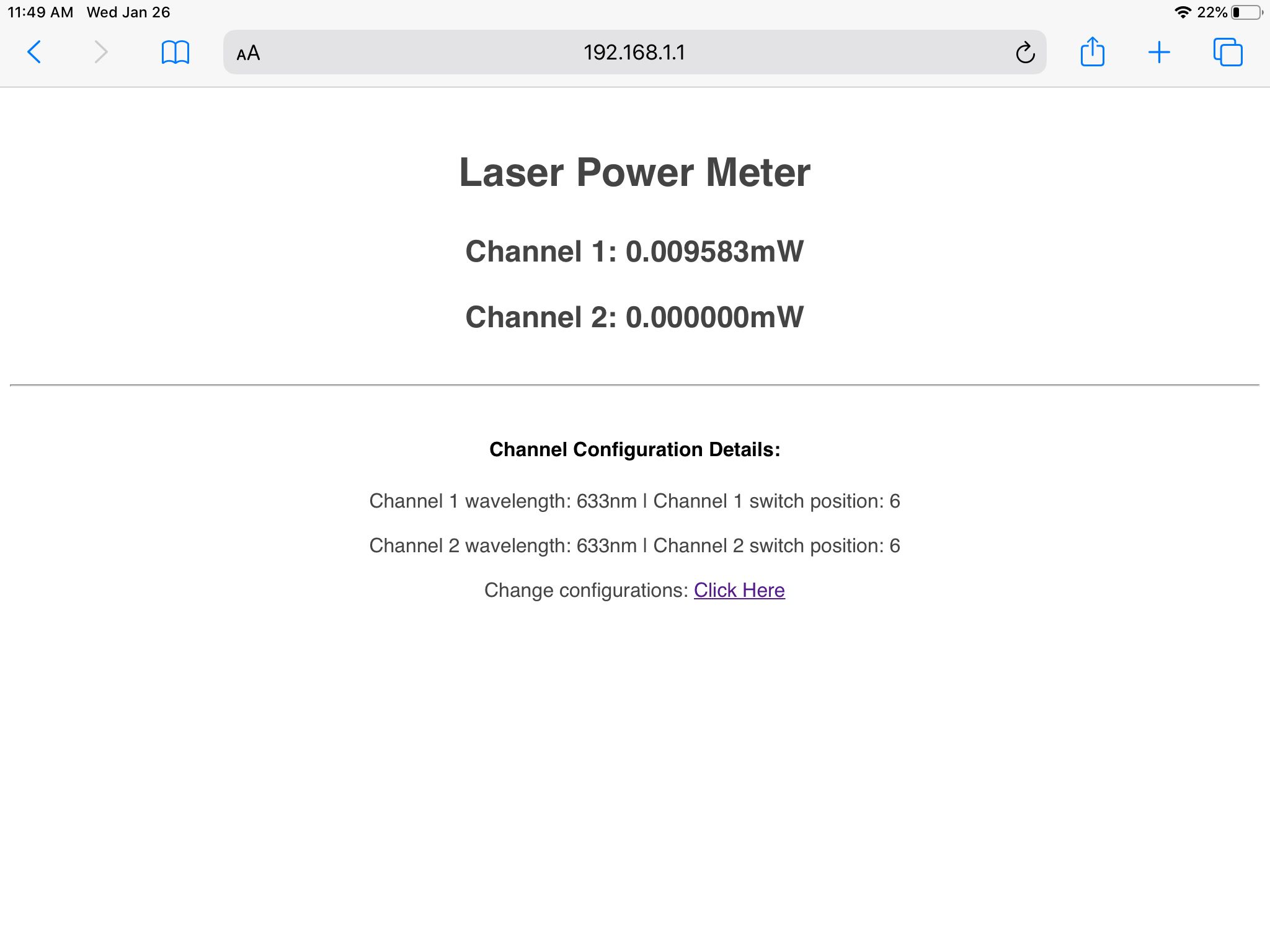
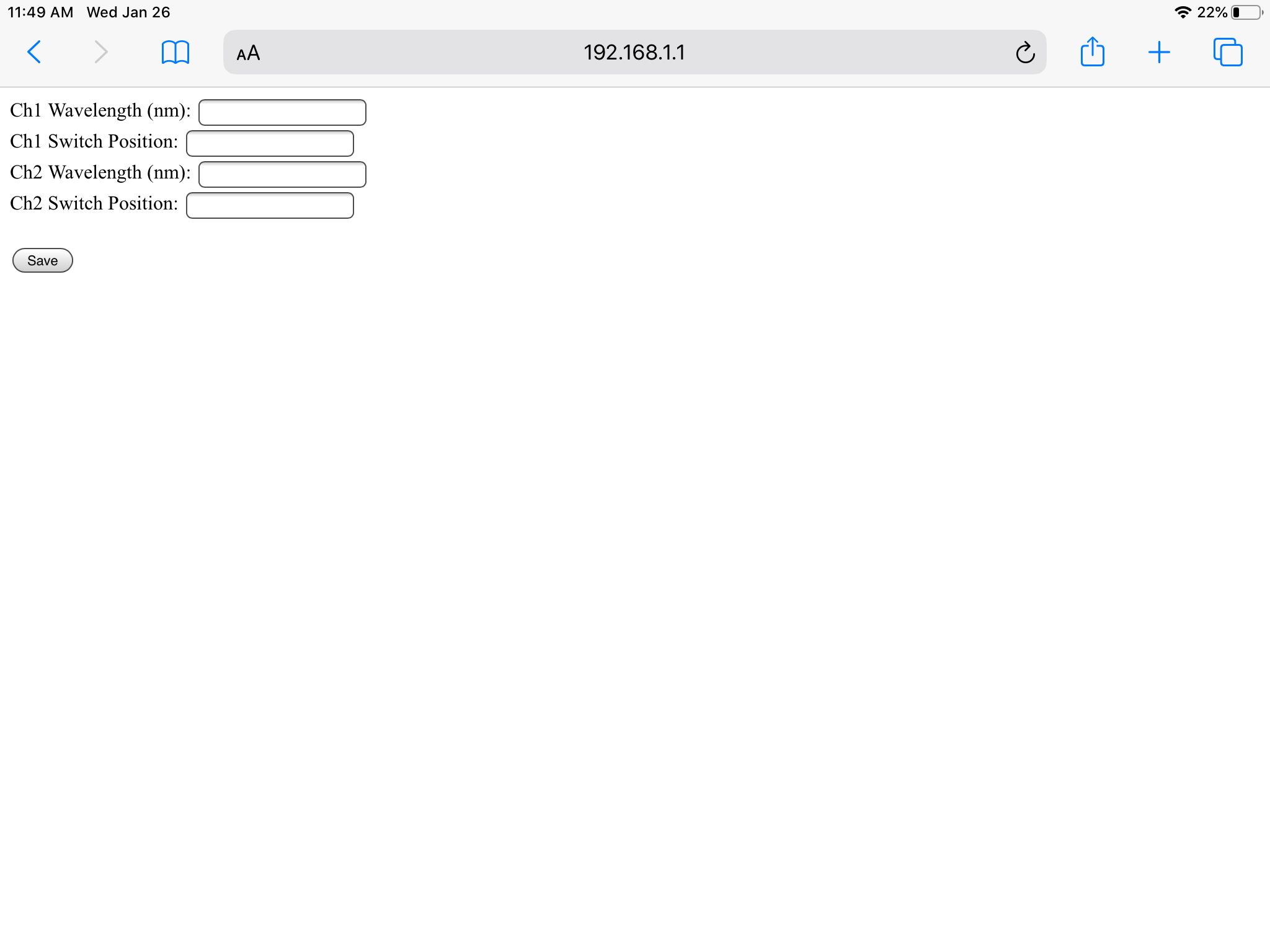
<p>Here are the webserver screenshots. Since the AP mode does not connect to the real Internet, the web server just provides the essential information here. Channel 2 is shorted with a jump, so the reading is zero here. Channel 1 reading is the measure of the ambient light. The channel configuration details are also provided. It can be seen that both channels are configured to measure the laser with a 633 nm wavelength. The configuration details can be changed on another page, as shown below. The change value will be saved in ESP 32 SPIFFS. So, the ESP 32 can store the values even after the restart.</p>

<p><img src="/uploads/images/2022/LaserPowerMeter5.jpg" alt="GUI" /></p>

<p><img src="/uploads/images/2022/LaserPowerMeter6.jpg" alt="Setting" /></p>

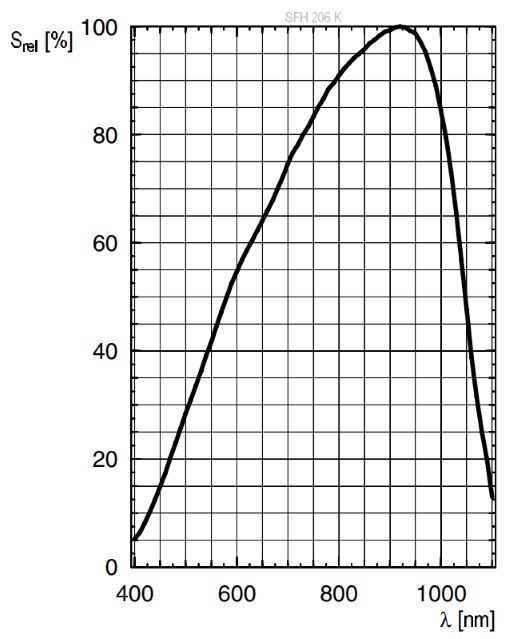
<p>The following section describes the calibration details. The photodiode calibration is based on the datasheet of SFH 206 K. The datasheet shows that the spectral sensitivity of the photodiode at 850 nm is 0.62 A/W. Also, the datasheet provides the relative spectral sensitivity curve, as shown below. Therefore, the sensitivity for each wavelength can be calculated.</p>

<p><img src="/uploads/images/2022/LaserPowerMeter7.jpg" alt="Sensitivity curve" width="75%" /></p>

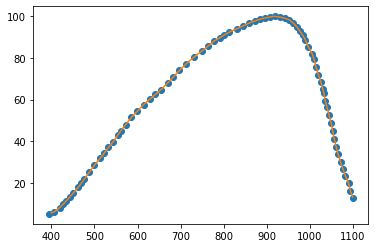
<p>I extract the data from the relative sensitivity curve and obtain the specific value at each wavelength.</p>

<ul>
  <li>Relative spectral sensitivity extract from the datasheet: <a href="/uploads/files/2022/RelativeSpectralSensitivity_SFH_206K.csv">Download</a></li>
  <li>Power sensitivity with interpolation at each wavelength: <a href="/uploads/files/2022/PowerSensitivity_SFH_206K.csv">Download</a></li>
</ul>

<p><img src="/uploads/images/2022/LaserPowerMeter8.jpg" alt="Fitting" /></p>

<p>Therefore, with the value of termination resistors and the measured voltage from ADS 1115, the laser power can be calculated based on the above curve.</p>]]></content><author><name>Dongping Zhu</name></author><category term="Projects" /><category term="Projects" /><summary type="html"><![CDATA[I made a simple laser power meter. The results are pretty good. I measured my own Uniphase helium-neon laser, the results show the laser power is around 0.68 to 0.70 mW. The value is consistent with the measured results from Coherent LaserCheck. The laser power meter consists of three parts: the photodiode, termination board, and circuit board. Here is the photo of this laser power meter.]]></summary></entry><entry><title type="html">Abaqus UMAT environment troubleshooting</title><link href="https://dpzhu.me/archives/abaqus-umat-environment.html" rel="alternate" type="text/html" title="Abaqus UMAT environment troubleshooting" /><published>2021-10-05T15:05:05+00:00</published><updated>2021-10-05T15:05:05+00:00</updated><id>https://dpzhu.me/archives/abaqus-umat-environment</id><content type="html" xml:base="https://dpzhu.me/archives/abaqus-umat-environment.html"><![CDATA[<p><img src="/uploads/images/0000/SIMULIA.jpg" alt="SIMULIA" />
During the subroutine environment setup, a lot of problems need to be solved. A typical problem is shown as following,</p>
<blockquote>
  <p>The job input file “Job-1.inp” has been submitted for analysis. Job Job-1: Analysis Input File Processor aborted due to errors. Error in job Job-1: Analysis Input File Processor exited with an error.</p>
</blockquote>

<!-- more -->

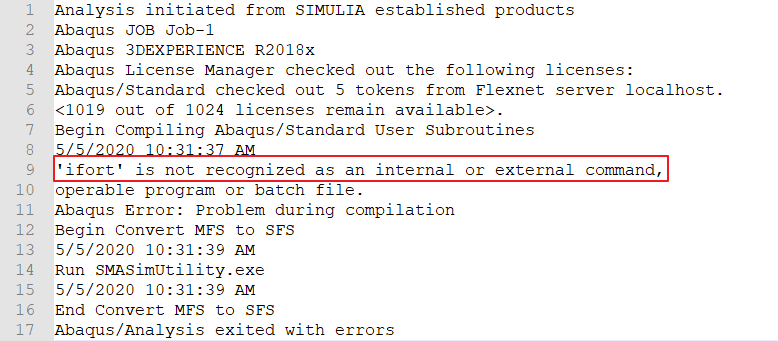
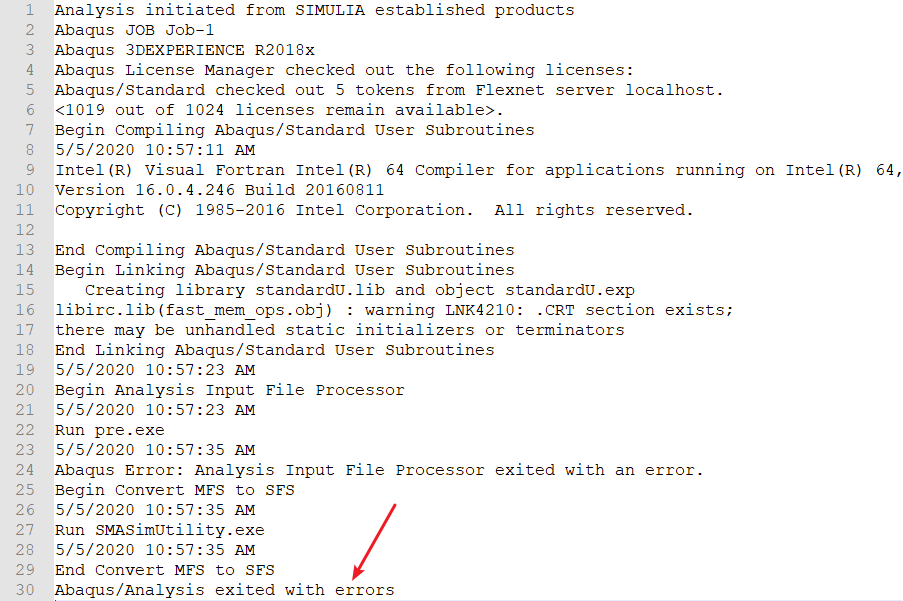
<p>Such a problem can be figured out by checking the log file in the working directory. Here is the example of the “Job-1.log” in the working directory. The log file shows the “ifort” command cannot be recognized as an internal or external command. It means this command cannot be found in the system path. Actually, “ifort” is the command used to compile the Fortran file.</p>

<p><img src="/uploads/images/2021/AbaqusUmatEnvironment1.png" alt="UMAT issue" /></p>

<p>To solve the problem, we need to add the command path to the system path. First, I use the tool “<a href="https://www.voidtools.com/">Everything</a>” to locate the file path.</p>

<p><img src="/uploads/images/2021/AbaqusUmatEnvironment2.png" alt="Everything" /></p>

<p>Four results can be found in this tool. The second “ifort.exe” is located in an x64 folder which is the same as my Win 10. Then, copy the path of this folder and paste to the system path. Right-click ”This PC” and select the “Properties”,</p>

<p><img src="/uploads/images/2021/AbaqusUmatEnvironment3.png" alt="Properties" /></p>

<p>Select “Advanced system settings”,</p>

<p><img src="/uploads/images/2021/AbaqusUmatEnvironment4.png" alt="Advanced settings" /></p>

<p>Select “Environment Variables…”,</p>

<p><img src="/uploads/images/2021/AbaqusUmatEnvironment5.png" alt="Environment variables" /></p>

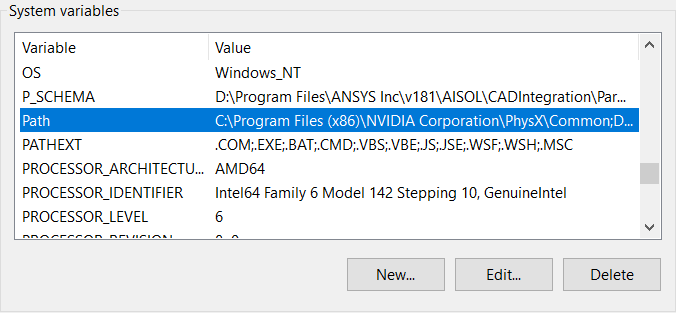
<p>Find the “Path” in “System variables”,</p>

<p><img src="/uploads/images/2021/AbaqusUmatEnvironment6.png" alt="System variables" /></p>

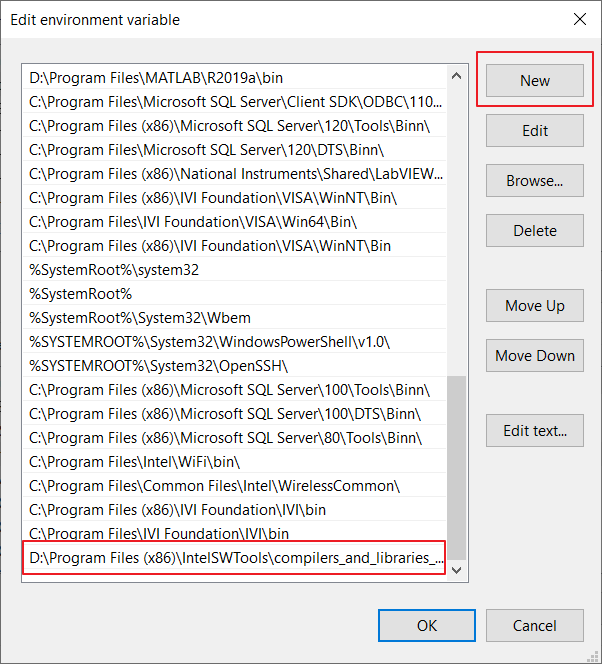
<p>New an environment variable and paste the “ifort.exe” folder path into it,</p>

<p><img src="/uploads/images/2021/AbaqusUmatEnvironment7.png" alt="New environment variable" /></p>

<p>Remember to RESTART the Abaqus after adding a new environment variable. In my Abaqus version (2018), the software cannot find the “ifort.exe” until I restart the software. Then, this problem is solved. But another problem occurs after I click the “submit” button.</p>

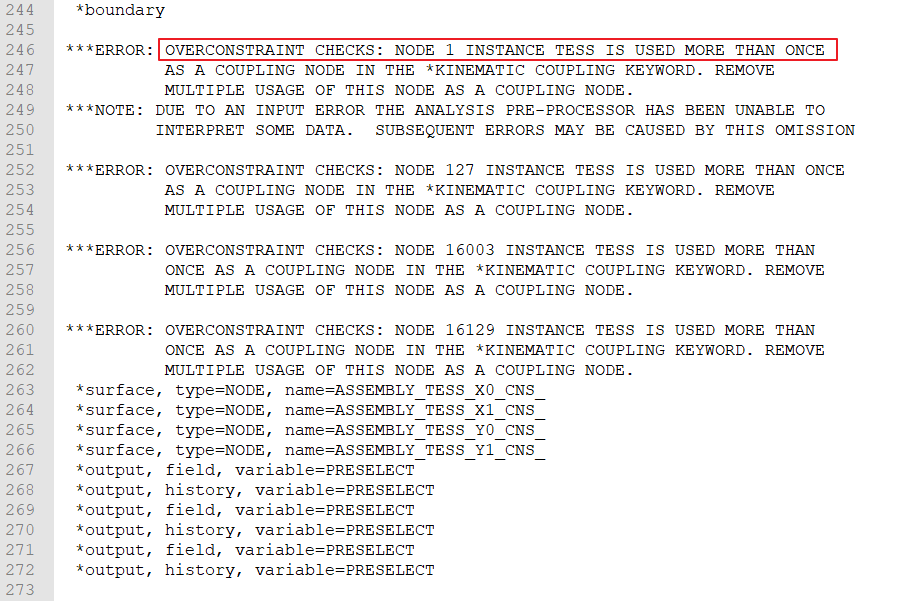
<p><img src="/uploads/images/2021/AbaqusUmatEnvironment8.png" alt="Still error" /></p>

<p>When I check the “Job-1.dat” file, it shows the model is overconstrained. After I remove the constraint, the model can be compiled and run successfully.</p>

<p><img src="/uploads/images/2021/AbaqusUmatEnvironment9.png" alt="Successful" /></p>]]></content><author><name>Dongping Zhu</name></author><category term="Explorations" /><category term="Abaqus" /><summary type="html"><![CDATA[During the subroutine environment setup, a lot of problems need to be solved. A typical problem is shown as following, The job input file “Job-1.inp” has been submitted for analysis. Job Job-1: Analysis Input File Processor aborted due to errors. Error in job Job-1: Analysis Input File Processor exited with an error.]]></summary></entry><entry><title type="html">Mathematica crack tip trajectory</title><link href="https://dpzhu.me/archives/mma-crack-tip-trajectory.html" rel="alternate" type="text/html" title="Mathematica crack tip trajectory" /><published>2020-09-10T17:34:05+00:00</published><updated>2020-09-10T17:34:05+00:00</updated><id>https://dpzhu.me/archives/mma-crack-tip-trajectory</id><content type="html" xml:base="https://dpzhu.me/archives/mma-crack-tip-trajectory.html"><![CDATA[<p><img src="/uploads/images/0000/Mathematica.jpg" alt="Mathematica" />
This post focuses on the crack tip tracking method. While I simulate several fatigue models, the crack tip trajectories are hard to track in the model. Previously, I just picked some points and decided on the crack length and rate in several images. This useful method is not very effective when I get several video clips in a crack place. Several image process tools such as Fiji can deal with the image fast and easily, but I still feel it is hard to realize my goal. So I try to write a simple tool to achieve the object. Since tracking the crack tip uses the technique of image processing, I use Mathematica for this purpose.</p>

<!-- more -->

<p>The main function used in Mathematica is the function called “ImageFeatureTrack”. This function will track some feature points in a sequence of images, and return the coordinates of these points in each image. Thus, the idea is not very difficult, we import the video and transfer it into the image sequence, then we specify the tracking points with the coordinates in the image and use ”ImageFeatureTrack” function to get the coordinates in each frame. The last step is to turn the image coordinates into the real model coordinates.</p>

<p>The first step is to import the file and turn it into a sequence of images. Additionally, the frame numbers are added to each frame to help inspect the image sequence,</p>

<div class="language-plaintext highlighter-rouge"><div class="highlight"><pre class="highlight"><code>(*Set up the path for a video file*)
fileInPath = NotebookDirectory[] &lt;&gt; "Crack.mov";
(*Import the file and get all frames*)
vIn = Import[fileInPath, {"Frames", All}];
(*Preview*)
vIn1 = Show[vIn[[#]], 
       Graphics[{Text[Style[#, FontSize -&gt; 14], 
       Scaled[{.5, .8}]]}]] &amp; /@
       Table[i, {i, Length[vIn]}];
ListAnimate[vIn1]
</code></pre></div></div>

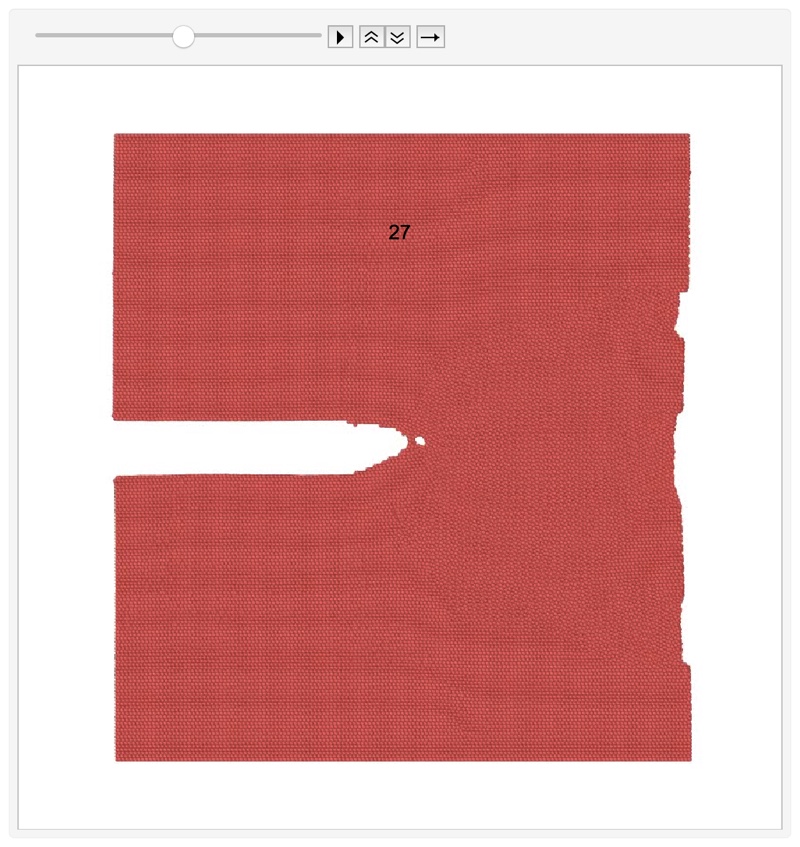
<p>The last line uses the “ListAnimate” command to generate a generate animation in Mathematica,</p>

<p><img src="/uploads/images/2020/CrackTipTrajectory1.jpg" alt="MMA" width="75%" /></p>

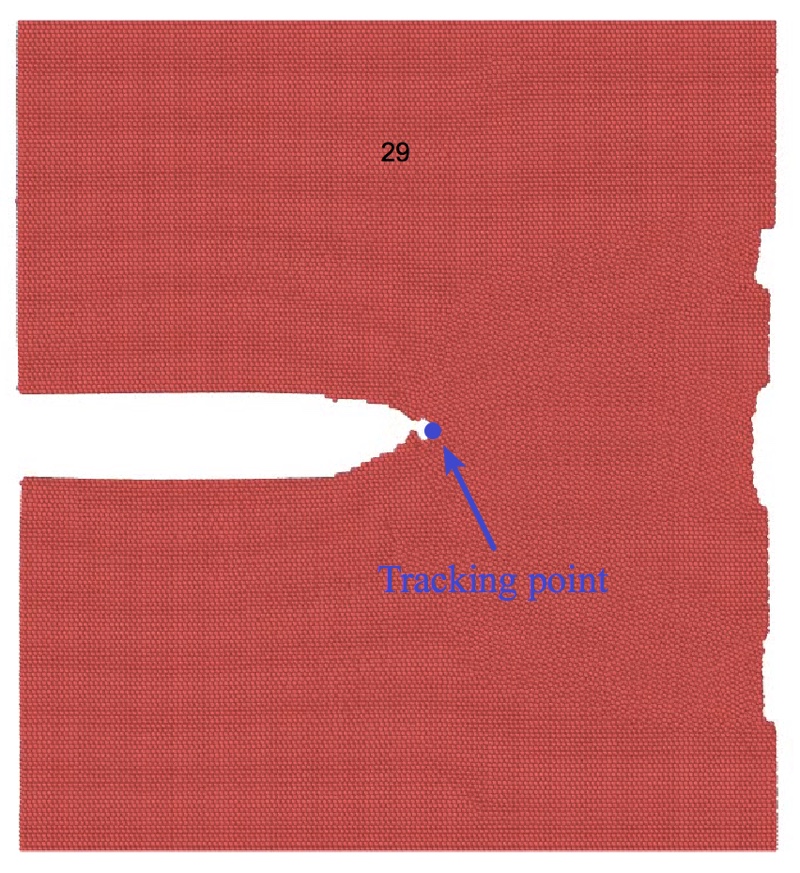
<p>Then, the tracking frame should be set according to the animation, in this example, the crack has a jump in 28th to 29th frame, so the frame number 29 should be used. At the end of the simulation, the crack becomes much more width,  so I select more frames here,</p>

<div class="language-plaintext highlighter-rouge"><div class="highlight"><pre class="highlight"><code>trackFrame = {1, 29, 38, 42};
vIn1[[#]] &amp; /@ trackFrame
</code></pre></div></div>

<p>The 1st, 29th, 38th, 42nd are shown to select the feature points here. Right-click the image and select Get Coordinates tool in the menu and pick the feature points on the image. Then use “Edit”-&gt;”Copy” to copy the coordinates. Since we chose four frames for tracking, four crack-tip feature points should be chosen. The following figure shows the point that I chose in the 29th frame.</p>

<p><img src="/uploads/images/2020/CrackTipTrajectory2.jpg" alt="MMA" width="75%" /></p>

<p>Paste the coordinates into the following code,</p>

<div class="language-plaintext highlighter-rouge"><div class="highlight"><pre class="highlight"><code>trackCoord = {{335.9, 400.2}, {430.5, 406.1}, 
              {436.5, 410.6}, {444., 401.6}};
trackFrame1 = Append[trackFrame, Length[vIn] + 1];
trackFrame2 = Partition[trackFrame1, 2, 1];
trackFrame3 = ReplacePart[#, {-1} -&gt; #[[-1]] - 1] &amp; /@ trackFrame2;
rST = MapThread[
      ImageFeatureTrack[Take[vIn, #1], {#2}] &amp;, {trackFrame3, 
      trackCoord}];
rST1 = Join @@ rST
</code></pre></div></div>

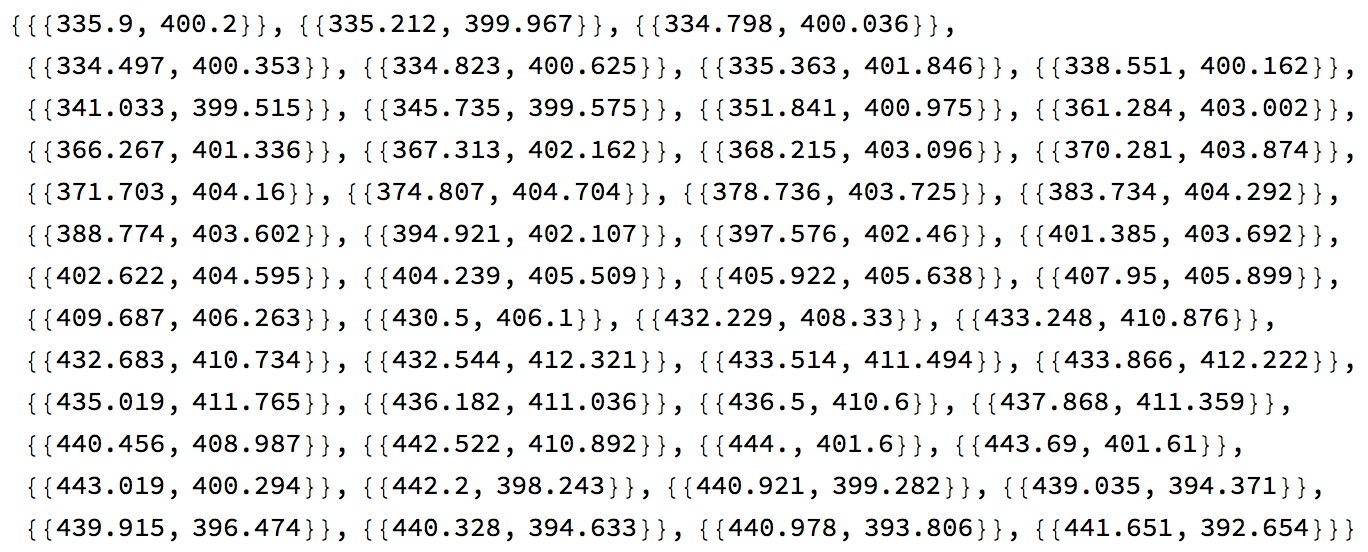
<p>The image coordinates of the crack tip will be stored in rST1,</p>

<p><img src="/uploads/images/2020/CrackTipTrajectory3.png" alt="MMA" /></p>

<p>Note that all these coordinates are just the image coordinates directly calculated from the image. Before we turn these coordinates into the real coordinates in the model, we should check the tracking quality. The method is very simple, I draw a small blue circle with the coordinates in “rST1” to each frame,</p>

<div class="language-plaintext highlighter-rouge"><div class="highlight"><pre class="highlight"><code>iMG1 = Table[ Show[vIn[[i]], 
       Graphics[{Blue, Thick, Circle[Flatten[rST1, 1][[i]], 5]}]], 
       {i, Length[vIn]}];
iMG2 = ImageResize[#, Scaled[1/1]] &amp; /@ iMG1;

(*Add frame number to inspect the tracking results*)
iMG3 = Show[iMG2[[#]], 
       Graphics[{Text[Style[#, FontSize -&gt; 14], Scaled[{.5, .8}]]}]] 
       &amp; /@ Table[i, {i, Length[iMG2]}];
vOut = ListAnimate[iMG3]
</code></pre></div></div>

<p>Drag the slide bar to check the tracking quality. If Mathematica lost the tracking point, you should add more tracking frames in the previous code to correct the result. If the crack tip trajectory is tracked correctly, then the following code is used to transfer the image coordinates into the real coordinates in the model,</p>

<div class="language-plaintext highlighter-rouge"><div class="highlight"><pre class="highlight"><code>realCoord = {{4.79849, 1.83042}, {356.478, 359.281}};
imgCoord = {{81.77, 75.45}, {720.1, 724.5}};

(*Get the scale factor and origin position*)
realDist = realCoord[[2]] - realCoord[[1]];
imgDist = imgCoord[[2]] - imgCoord[[1]];
xyFactor = realDist/imgDist;
xyOrigin = xyFactor*(imgDist/realDist*(-realCoord[[1]]) + imgCoord[[1]]);
rST2 = xyFactor*# - xyOrigin &amp; /@ Flatten[rST1, 1]

(*Draw the image coordinates*)
ListLinePlot[Flatten[rST1, 1], Mesh -&gt; All]
ListLinePlot[rST2, Mesh -&gt; All]
</code></pre></div></div>

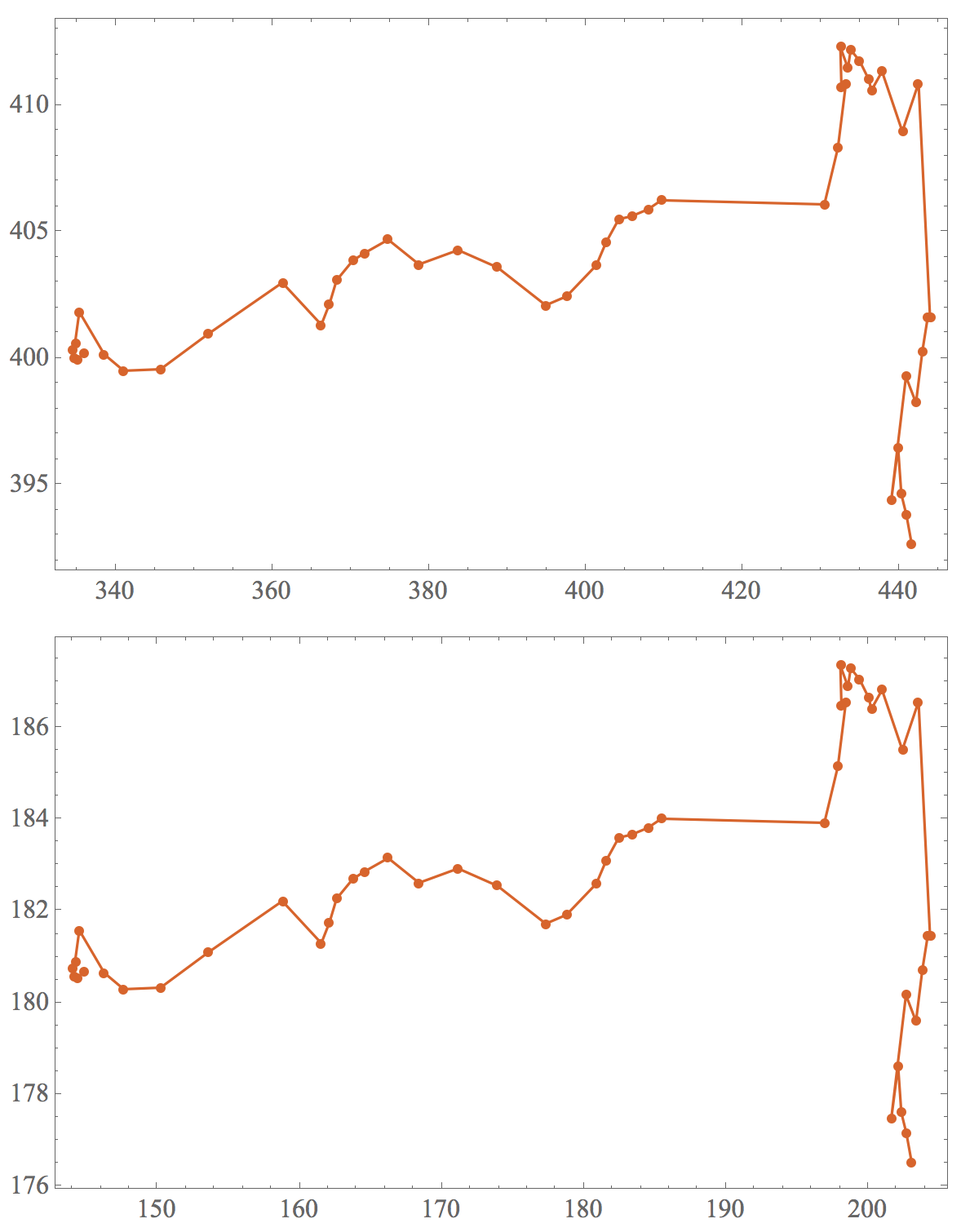
<p>To calculate the real coordinates, I use the coordinates of two points. “realCoord” stores the real coordinates in the model, and “imgCoord” stores the coordinates in the image at the same model position. The result will be saved in rST2. Two list plots will be drawn to compare the coordinates,</p>

<p><img src="/uploads/images/2020/CrackTipTrajectory4.png" alt="MMA" width="75%" /></p>

<p>The first figure is about the image coordinates and the second figure is the real coordinates in the model. Then, we export the animation.</p>

<div class="language-plaintext highlighter-rouge"><div class="highlight"><pre class="highlight"><code>fileOutPath = NotebookDirectory[] &lt;&gt; "Out.avi";
Export[fileOutPath, iMG2]
</code></pre></div></div>

<p>Here is the result animation:</p>

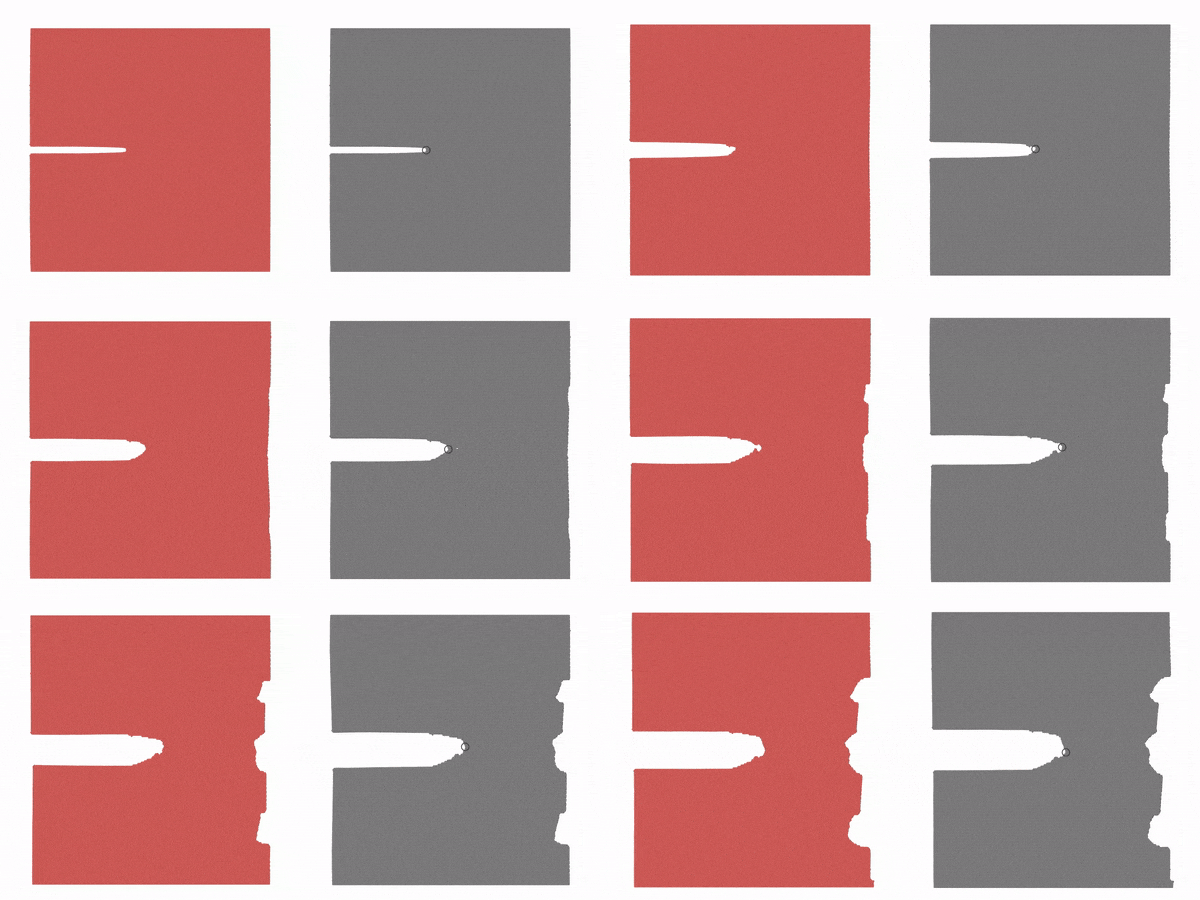
<p><img src="/uploads/images/2020/CrackTipTrajectory5.gif" alt="MMA" /></p>

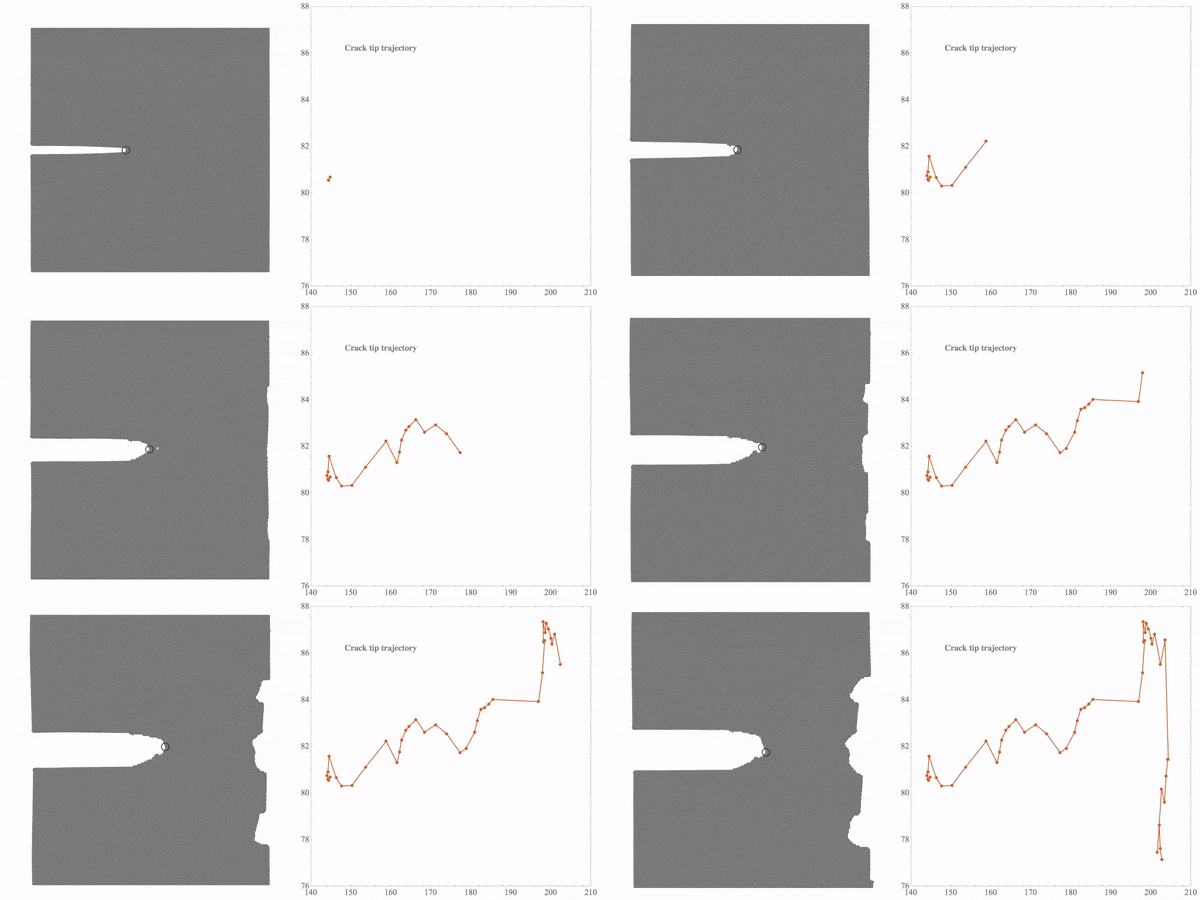
<p><img src="/uploads/images/2020/CrackTipTrajectory6.gif" alt="MMA" /></p>]]></content><author><name>Dongping Zhu</name></author><category term="Explorations" /><category term="Mathematica" /><summary type="html"><![CDATA[This post focuses on the crack tip tracking method. While I simulate several fatigue models, the crack tip trajectories are hard to track in the model. Previously, I just picked some points and decided on the crack length and rate in several images. This useful method is not very effective when I get several video clips in a crack place. Several image process tools such as Fiji can deal with the image fast and easily, but I still feel it is hard to realize my goal. So I try to write a simple tool to achieve the object. Since tracking the crack tip uses the technique of image processing, I use Mathematica for this purpose.]]></summary></entry><entry><title type="html">Snippet Abaqus square plate inp</title><link href="https://dpzhu.me/archives/abaqus-inp-example.html" rel="alternate" type="text/html" title="Snippet Abaqus square plate inp" /><published>2020-05-02T17:34:05+00:00</published><updated>2020-05-02T17:34:05+00:00</updated><id>https://dpzhu.me/archives/abaqus-inp-example</id><content type="html" xml:base="https://dpzhu.me/archives/abaqus-inp-example.html"><![CDATA[<p><img src="/uploads/images/0000/Snippet.jpg" alt="Snippet" />
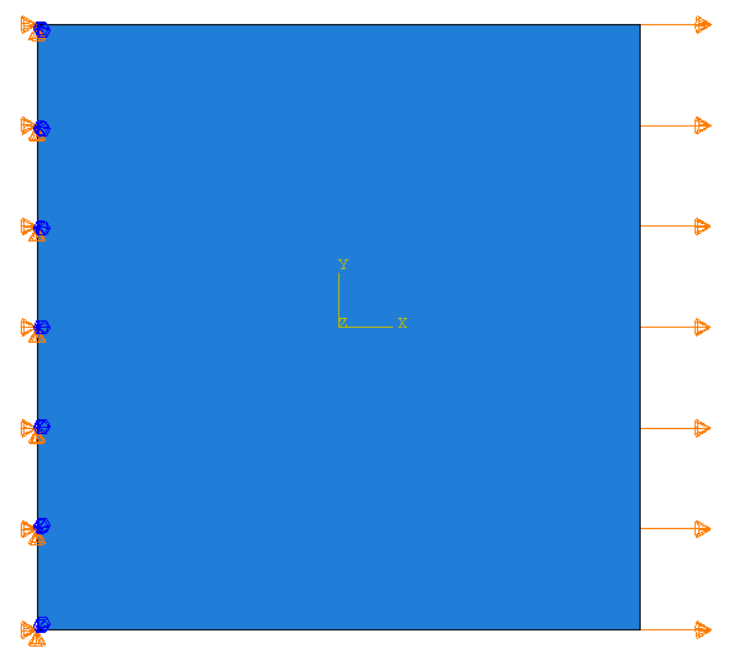
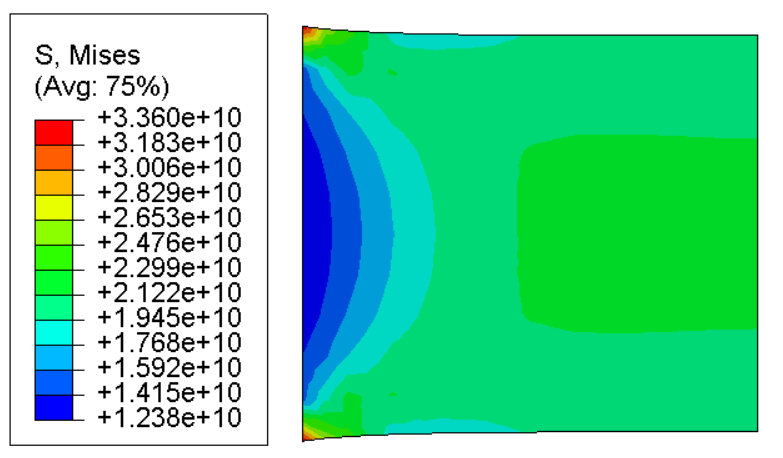
An example to show the inp file structure. The example demonstrates the stretch of a square plate with the dimension $1 \times 1 \mathrm{m^2}$. The plate material is steel with elastic stiffness of $2.1 \times 10^{11} \mathrm{MPa}$. The material density is $7800 \mathrm{kg/m^3}$. The left boundary is fixed and $0.1 \mathrm{m}$ displacement is applied to the right boundary. The plane strain is assumed in the model. Here are the model and the simulation results.</p>

<!-- more -->

<p><img src="/uploads/images/2020/AbaqusSquareInp1.png" alt="Example" width="75%" /></p>

<p><img src="/uploads/images/2020/AbaqusSquareInp2.png" alt="Example" width="75%" /></p>

<p>The inp file is shown below,</p>

<div class="language-plaintext highlighter-rouge"><div class="highlight"><pre class="highlight"><code>*Heading
** Job name: Job-1 Model name: Model-1
** Generated by: Abaqus/CAE 2018
*Preprint, echo=NO, model=NO, history=NO, contact=NO
**
** PARTS
**
*Part, name=Part-1
*Node
      1,         -0.5,         -0.5
      2, -0.400000006,         -0.5
      3, -0.300000012,         -0.5
      4, -0.200000003,         -0.5
      5, -0.100000001,         -0.5
      6,           0.,         -0.5
      7,  0.100000001,         -0.5
      8,  0.200000003,         -0.5
      9,  0.300000012,         -0.5
     10,  0.400000006,         -0.5
     11,          0.5,         -0.5
     12,         -0.5, -0.400000006
     13, -0.400000006, -0.400000006
     14, -0.300000012, -0.400000006
     15, -0.200000003, -0.400000006
     16, -0.100000001, -0.400000006
     17,           0., -0.400000006
     18,  0.100000001, -0.400000006
     19,  0.200000003, -0.400000006
     20,  0.300000012, -0.400000006
     21,  0.400000006, -0.400000006
     22,          0.5, -0.400000006
     23,         -0.5, -0.300000012
     24, -0.400000006, -0.300000012
     25, -0.300000012, -0.300000012
     26, -0.200000003, -0.300000012
     27, -0.100000001, -0.300000012
     28,           0., -0.300000012
     29,  0.100000001, -0.300000012
     30,  0.200000003, -0.300000012
     31,  0.300000012, -0.300000012
     32,  0.400000006, -0.300000012
     33,          0.5, -0.300000012
     34,         -0.5, -0.200000003
     35, -0.400000006, -0.200000003
     36, -0.300000012, -0.200000003
     37, -0.200000003, -0.200000003
     38, -0.100000001, -0.200000003
     39,           0., -0.200000003
     40,  0.100000001, -0.200000003
     41,  0.200000003, -0.200000003
     42,  0.300000012, -0.200000003
     43,  0.400000006, -0.200000003
     44,          0.5, -0.200000003
     45,         -0.5, -0.100000001
     46, -0.400000006, -0.100000001
     47, -0.300000012, -0.100000001
     48, -0.200000003, -0.100000001
     49, -0.100000001, -0.100000001
     50,           0., -0.100000001
     51,  0.100000001, -0.100000001
     52,  0.200000003, -0.100000001
     53,  0.300000012, -0.100000001
     54,  0.400000006, -0.100000001
     55,          0.5, -0.100000001
     56,         -0.5,           0.
     57, -0.400000006,           0.
     58, -0.300000012,           0.
     59, -0.200000003,           0.
     60, -0.100000001,           0.
     61,           0.,           0.
     62,  0.100000001,           0.
     63,  0.200000003,           0.
     64,  0.300000012,           0.
     65,  0.400000006,           0.
     66,          0.5,           0.
     67,         -0.5,  0.100000001
     68, -0.400000006,  0.100000001
     69, -0.300000012,  0.100000001
     70, -0.200000003,  0.100000001
     71, -0.100000001,  0.100000001
     72,           0.,  0.100000001
     73,  0.100000001,  0.100000001
     74,  0.200000003,  0.100000001
     75,  0.300000012,  0.100000001
     76,  0.400000006,  0.100000001
     77,          0.5,  0.100000001
     78,         -0.5,  0.200000003
     79, -0.400000006,  0.200000003
     80, -0.300000012,  0.200000003
     81, -0.200000003,  0.200000003
     82, -0.100000001,  0.200000003
     83,           0.,  0.200000003
     84,  0.100000001,  0.200000003
     85,  0.200000003,  0.200000003
     86,  0.300000012,  0.200000003
     87,  0.400000006,  0.200000003
     88,          0.5,  0.200000003
     89,         -0.5,  0.300000012
     90, -0.400000006,  0.300000012
     91, -0.300000012,  0.300000012
     92, -0.200000003,  0.300000012
     93, -0.100000001,  0.300000012
     94,           0.,  0.300000012
     95,  0.100000001,  0.300000012
     96,  0.200000003,  0.300000012
     97,  0.300000012,  0.300000012
     98,  0.400000006,  0.300000012
     99,          0.5,  0.300000012
    100,         -0.5,  0.400000006
    101, -0.400000006,  0.400000006
    102, -0.300000012,  0.400000006
    103, -0.200000003,  0.400000006
    104, -0.100000001,  0.400000006
    105,           0.,  0.400000006
    106,  0.100000001,  0.400000006
    107,  0.200000003,  0.400000006
    108,  0.300000012,  0.400000006
    109,  0.400000006,  0.400000006
    110,          0.5,  0.400000006
    111,         -0.5,          0.5
    112, -0.400000006,          0.5
    113, -0.300000012,          0.5
    114, -0.200000003,          0.5
    115, -0.100000001,          0.5
    116,           0.,          0.5
    117,  0.100000001,          0.5
    118,  0.200000003,          0.5
    119,  0.300000012,          0.5
    120,  0.400000006,          0.5
    121,          0.5,          0.5
    122, -0.449999988,         -0.5
    123, -0.400000006, -0.449999988
    124, -0.449999988, -0.400000006
    125,         -0.5, -0.449999988
    126, -0.350000024,         -0.5
    127, -0.300000012, -0.449999988
    128, -0.350000024, -0.400000006
    129,        -0.25,         -0.5
    130, -0.200000003, -0.449999988
    131,        -0.25, -0.400000006
    132, -0.150000006,         -0.5
    133, -0.100000001, -0.449999988
    134, -0.150000006, -0.400000006
    135, -0.0500000007,         -0.5
    136,           0., -0.449999988
    137, -0.0500000007, -0.400000006
    138, 0.0500000007,         -0.5
    139,  0.100000001, -0.449999988
    140, 0.0500000007, -0.400000006
    141,  0.150000006,         -0.5
    142,  0.200000003, -0.449999988
    143,  0.150000006, -0.400000006
    144,         0.25,         -0.5
    145,  0.300000012, -0.449999988
    146,         0.25, -0.400000006
    147,  0.350000024,         -0.5
    148,  0.400000006, -0.449999988
    149,  0.350000024, -0.400000006
    150,  0.449999988,         -0.5
    151,          0.5, -0.449999988
    152,  0.449999988, -0.400000006
    153, -0.400000006, -0.350000024
    154, -0.449999988, -0.300000012
    155,         -0.5, -0.350000024
    156, -0.300000012, -0.350000024
    157, -0.350000024, -0.300000012
    158, -0.200000003, -0.350000024
    159,        -0.25, -0.300000012
    160, -0.100000001, -0.350000024
    161, -0.150000006, -0.300000012
    162,           0., -0.350000024
    163, -0.0500000007, -0.300000012
    164,  0.100000001, -0.350000024
    165, 0.0500000007, -0.300000012
    166,  0.200000003, -0.350000024
    167,  0.150000006, -0.300000012
    168,  0.300000012, -0.350000024
    169,         0.25, -0.300000012
    170,  0.400000006, -0.350000024
    171,  0.350000024, -0.300000012
    172,          0.5, -0.350000024
    173,  0.449999988, -0.300000012
    174, -0.400000006,        -0.25
    175, -0.449999988, -0.200000003
    176,         -0.5,        -0.25
    177, -0.300000012,        -0.25
    178, -0.350000024, -0.200000003
    179, -0.200000003,        -0.25
    180,        -0.25, -0.200000003
    181, -0.100000001,        -0.25
    182, -0.150000006, -0.200000003
    183,           0.,        -0.25
    184, -0.0500000007, -0.200000003
    185,  0.100000001,        -0.25
    186, 0.0500000007, -0.200000003
    187,  0.200000003,        -0.25
    188,  0.150000006, -0.200000003
    189,  0.300000012,        -0.25
    190,         0.25, -0.200000003
    191,  0.400000006,        -0.25
    192,  0.350000024, -0.200000003
    193,          0.5,        -0.25
    194,  0.449999988, -0.200000003
    195, -0.400000006, -0.150000006
    196, -0.449999988, -0.100000001
    197,         -0.5, -0.150000006
    198, -0.300000012, -0.150000006
    199, -0.350000024, -0.100000001
    200, -0.200000003, -0.150000006
    201,        -0.25, -0.100000001
    202, -0.100000001, -0.150000006
    203, -0.150000006, -0.100000001
    204,           0., -0.150000006
    205, -0.0500000007, -0.100000001
    206,  0.100000001, -0.150000006
    207, 0.0500000007, -0.100000001
    208,  0.200000003, -0.150000006
    209,  0.150000006, -0.100000001
    210,  0.300000012, -0.150000006
    211,         0.25, -0.100000001
    212,  0.400000006, -0.150000006
    213,  0.350000024, -0.100000001
    214,          0.5, -0.150000006
    215,  0.449999988, -0.100000001
    216, -0.400000006, -0.0500000007
    217, -0.449999988,           0.
    218,         -0.5, -0.0500000007
    219, -0.300000012, -0.0500000007
    220, -0.350000024,           0.
    221, -0.200000003, -0.0500000007
    222,        -0.25,           0.
    223, -0.100000001, -0.0500000007
    224, -0.150000006,           0.
    225,           0., -0.0500000007
    226, -0.0500000007,           0.
    227,  0.100000001, -0.0500000007
    228, 0.0500000007,           0.
    229,  0.200000003, -0.0500000007
    230,  0.150000006,           0.
    231,  0.300000012, -0.0500000007
    232,         0.25,           0.
    233,  0.400000006, -0.0500000007
    234,  0.350000024,           0.
    235,          0.5, -0.0500000007
    236,  0.449999988,           0.
    237, -0.400000006, 0.0500000007
    238, -0.449999988,  0.100000001
    239,         -0.5, 0.0500000007
    240, -0.300000012, 0.0500000007
    241, -0.350000024,  0.100000001
    242, -0.200000003, 0.0500000007
    243,        -0.25,  0.100000001
    244, -0.100000001, 0.0500000007
    245, -0.150000006,  0.100000001
    246,           0., 0.0500000007
    247, -0.0500000007,  0.100000001
    248,  0.100000001, 0.0500000007
    249, 0.0500000007,  0.100000001
    250,  0.200000003, 0.0500000007
    251,  0.150000006,  0.100000001
    252,  0.300000012, 0.0500000007
    253,         0.25,  0.100000001
    254,  0.400000006, 0.0500000007
    255,  0.350000024,  0.100000001
    256,          0.5, 0.0500000007
    257,  0.449999988,  0.100000001
    258, -0.400000006,  0.150000006
    259, -0.449999988,  0.200000003
    260,         -0.5,  0.150000006
    261, -0.300000012,  0.150000006
    262, -0.350000024,  0.200000003
    263, -0.200000003,  0.150000006
    264,        -0.25,  0.200000003
    265, -0.100000001,  0.150000006
    266, -0.150000006,  0.200000003
    267,           0.,  0.150000006
    268, -0.0500000007,  0.200000003
    269,  0.100000001,  0.150000006
    270, 0.0500000007,  0.200000003
    271,  0.200000003,  0.150000006
    272,  0.150000006,  0.200000003
    273,  0.300000012,  0.150000006
    274,         0.25,  0.200000003
    275,  0.400000006,  0.150000006
    276,  0.350000024,  0.200000003
    277,          0.5,  0.150000006
    278,  0.449999988,  0.200000003
    279, -0.400000006,         0.25
    280, -0.449999988,  0.300000012
    281,         -0.5,         0.25
    282, -0.300000012,         0.25
    283, -0.350000024,  0.300000012
    284, -0.200000003,         0.25
    285,        -0.25,  0.300000012
    286, -0.100000001,         0.25
    287, -0.150000006,  0.300000012
    288,           0.,         0.25
    289, -0.0500000007,  0.300000012
    290,  0.100000001,         0.25
    291, 0.0500000007,  0.300000012
    292,  0.200000003,         0.25
    293,  0.150000006,  0.300000012
    294,  0.300000012,         0.25
    295,         0.25,  0.300000012
    296,  0.400000006,         0.25
    297,  0.350000024,  0.300000012
    298,          0.5,         0.25
    299,  0.449999988,  0.300000012
    300, -0.400000006,  0.350000024
    301, -0.449999988,  0.400000006
    302,         -0.5,  0.350000024
    303, -0.300000012,  0.350000024
    304, -0.350000024,  0.400000006
    305, -0.200000003,  0.350000024
    306,        -0.25,  0.400000006
    307, -0.100000001,  0.350000024
    308, -0.150000006,  0.400000006
    309,           0.,  0.350000024
    310, -0.0500000007,  0.400000006
    311,  0.100000001,  0.350000024
    312, 0.0500000007,  0.400000006
    313,  0.200000003,  0.350000024
    314,  0.150000006,  0.400000006
    315,  0.300000012,  0.350000024
    316,         0.25,  0.400000006
    317,  0.400000006,  0.350000024
    318,  0.350000024,  0.400000006
    319,          0.5,  0.350000024
    320,  0.449999988,  0.400000006
    321, -0.400000006,  0.449999988
    322, -0.449999988,          0.5
    323,         -0.5,  0.449999988
    324, -0.300000012,  0.449999988
    325, -0.350000024,          0.5
    326, -0.200000003,  0.449999988
    327,        -0.25,          0.5
    328, -0.100000001,  0.449999988
    329, -0.150000006,          0.5
    330,           0.,  0.449999988
    331, -0.0500000007,          0.5
    332,  0.100000001,  0.449999988
    333, 0.0500000007,          0.5
    334,  0.200000003,  0.449999988
    335,  0.150000006,          0.5
    336,  0.300000012,  0.449999988
    337,         0.25,          0.5
    338,  0.400000006,  0.449999988
    339,  0.350000024,          0.5
    340,          0.5,  0.449999988
    341,  0.449999988,          0.5
*Element, type=CPE8R
  1,   1,   2,  13,  12, 122, 123, 124, 125
  2,   2,   3,  14,  13, 126, 127, 128, 123
  3,   3,   4,  15,  14, 129, 130, 131, 127
  4,   4,   5,  16,  15, 132, 133, 134, 130
  5,   5,   6,  17,  16, 135, 136, 137, 133
  6,   6,   7,  18,  17, 138, 139, 140, 136
  7,   7,   8,  19,  18, 141, 142, 143, 139
  8,   8,   9,  20,  19, 144, 145, 146, 142
  9,   9,  10,  21,  20, 147, 148, 149, 145
 10,  10,  11,  22,  21, 150, 151, 152, 148
 11,  12,  13,  24,  23, 124, 153, 154, 155
 12,  13,  14,  25,  24, 128, 156, 157, 153
 13,  14,  15,  26,  25, 131, 158, 159, 156
 14,  15,  16,  27,  26, 134, 160, 161, 158
 15,  16,  17,  28,  27, 137, 162, 163, 160
 16,  17,  18,  29,  28, 140, 164, 165, 162
 17,  18,  19,  30,  29, 143, 166, 167, 164
 18,  19,  20,  31,  30, 146, 168, 169, 166
 19,  20,  21,  32,  31, 149, 170, 171, 168
 20,  21,  22,  33,  32, 152, 172, 173, 170
 21,  23,  24,  35,  34, 154, 174, 175, 176
 22,  24,  25,  36,  35, 157, 177, 178, 174
 23,  25,  26,  37,  36, 159, 179, 180, 177
 24,  26,  27,  38,  37, 161, 181, 182, 179
 25,  27,  28,  39,  38, 163, 183, 184, 181
 26,  28,  29,  40,  39, 165, 185, 186, 183
 27,  29,  30,  41,  40, 167, 187, 188, 185
 28,  30,  31,  42,  41, 169, 189, 190, 187
 29,  31,  32,  43,  42, 171, 191, 192, 189
 30,  32,  33,  44,  43, 173, 193, 194, 191
 31,  34,  35,  46,  45, 175, 195, 196, 197
 32,  35,  36,  47,  46, 178, 198, 199, 195
 33,  36,  37,  48,  47, 180, 200, 201, 198
 34,  37,  38,  49,  48, 182, 202, 203, 200
 35,  38,  39,  50,  49, 184, 204, 205, 202
 36,  39,  40,  51,  50, 186, 206, 207, 204
 37,  40,  41,  52,  51, 188, 208, 209, 206
 38,  41,  42,  53,  52, 190, 210, 211, 208
 39,  42,  43,  54,  53, 192, 212, 213, 210
 40,  43,  44,  55,  54, 194, 214, 215, 212
 41,  45,  46,  57,  56, 196, 216, 217, 218
 42,  46,  47,  58,  57, 199, 219, 220, 216
 43,  47,  48,  59,  58, 201, 221, 222, 219
 44,  48,  49,  60,  59, 203, 223, 224, 221
 45,  49,  50,  61,  60, 205, 225, 226, 223
 46,  50,  51,  62,  61, 207, 227, 228, 225
 47,  51,  52,  63,  62, 209, 229, 230, 227
 48,  52,  53,  64,  63, 211, 231, 232, 229
 49,  53,  54,  65,  64, 213, 233, 234, 231
 50,  54,  55,  66,  65, 215, 235, 236, 233
 51,  56,  57,  68,  67, 217, 237, 238, 239
 52,  57,  58,  69,  68, 220, 240, 241, 237
 53,  58,  59,  70,  69, 222, 242, 243, 240
 54,  59,  60,  71,  70, 224, 244, 245, 242
 55,  60,  61,  72,  71, 226, 246, 247, 244
 56,  61,  62,  73,  72, 228, 248, 249, 246
 57,  62,  63,  74,  73, 230, 250, 251, 248
 58,  63,  64,  75,  74, 232, 252, 253, 250
 59,  64,  65,  76,  75, 234, 254, 255, 252
 60,  65,  66,  77,  76, 236, 256, 257, 254
 61,  67,  68,  79,  78, 238, 258, 259, 260
 62,  68,  69,  80,  79, 241, 261, 262, 258
 63,  69,  70,  81,  80, 243, 263, 264, 261
 64,  70,  71,  82,  81, 245, 265, 266, 263
 65,  71,  72,  83,  82, 247, 267, 268, 265
 66,  72,  73,  84,  83, 249, 269, 270, 267
 67,  73,  74,  85,  84, 251, 271, 272, 269
 68,  74,  75,  86,  85, 253, 273, 274, 271
 69,  75,  76,  87,  86, 255, 275, 276, 273
 70,  76,  77,  88,  87, 257, 277, 278, 275
 71,  78,  79,  90,  89, 259, 279, 280, 281
 72,  79,  80,  91,  90, 262, 282, 283, 279
 73,  80,  81,  92,  91, 264, 284, 285, 282
 74,  81,  82,  93,  92, 266, 286, 287, 284
 75,  82,  83,  94,  93, 268, 288, 289, 286
 76,  83,  84,  95,  94, 270, 290, 291, 288
 77,  84,  85,  96,  95, 272, 292, 293, 290
 78,  85,  86,  97,  96, 274, 294, 295, 292
 79,  86,  87,  98,  97, 276, 296, 297, 294
 80,  87,  88,  99,  98, 278, 298, 299, 296
 81,  89,  90, 101, 100, 280, 300, 301, 302
 82,  90,  91, 102, 101, 283, 303, 304, 300
 83,  91,  92, 103, 102, 285, 305, 306, 303
 84,  92,  93, 104, 103, 287, 307, 308, 305
 85,  93,  94, 105, 104, 289, 309, 310, 307
 86,  94,  95, 106, 105, 291, 311, 312, 309
 87,  95,  96, 107, 106, 293, 313, 314, 311
 88,  96,  97, 108, 107, 295, 315, 316, 313
 89,  97,  98, 109, 108, 297, 317, 318, 315
 90,  98,  99, 110, 109, 299, 319, 320, 317
 91, 100, 101, 112, 111, 301, 321, 322, 323
 92, 101, 102, 113, 112, 304, 324, 325, 321
 93, 102, 103, 114, 113, 306, 326, 327, 324
 94, 103, 104, 115, 114, 308, 328, 329, 326
 95, 104, 105, 116, 115, 310, 330, 331, 328
 96, 105, 106, 117, 116, 312, 332, 333, 330
 97, 106, 107, 118, 117, 314, 334, 335, 332
 98, 107, 108, 119, 118, 316, 336, 337, 334
 99, 108, 109, 120, 119, 318, 338, 339, 336
100, 109, 110, 121, 120, 320, 340, 341, 338
*Nset, nset=Set-1, generate
   1,  341,    1
*Elset, elset=Set-1, generate
   1,  100,    1
** Section: Section-1
*Solid Section, elset=Set-1, material=Material-1
1.,
*End Part
**  
**
** ASSEMBLY
**
*Assembly, name=Assembly
**  
*Instance, name=Part-1-1, part=Part-1
*End Instance
**  
*Nset, nset=Set-1, instance=Part-1-1
   1,  12,  23,  34,  45,  56,  67,  78
  89, 100, 111, 125, 155, 176, 197, 218
 239, 260, 281, 302, 323
*Elset, elset=Set-1, instance=Part-1-1, generate
  1,  91,  10
*Nset, nset=Set-2, instance=Part-1-1
  11,  22,  33,  44,  55,  66,  77,  88
  99, 110, 121, 151, 172, 193, 214, 235
 256, 277, 298, 319, 340
*Elset, elset=Set-2, instance=Part-1-1, generate
  10,  100,   10
*End Assembly
** 
** MATERIALS
** 
*Material, name=Material-1
*Density
7800.,
*Elastic
 2.1e+11, 0.3
** 
** BOUNDARY CONDITIONS
** 
** Name: BC-1 Type: Displacement/Rotation
*Boundary
Set-1, 1, 1
Set-1, 2, 2
Set-1, 6, 6
** ----------------------------------------------------------------
** 
** STEP: Step-1
** 
*Step, name=Step-1, nlgeom=NO
*Static
1., 1., 1e-05, 1.
** 
** BOUNDARY CONDITIONS
** 
** Name: BC-2 Type: Displacement/Rotation
*Boundary
Set-2, 1, 1, 0.1
** 
** OUTPUT REQUESTS
** 
*Restart, write, frequency=0
** 
** FIELD OUTPUT: F-Output-1
** 
*Output, field, variable=PRESELECT
** 
** HISTORY OUTPUT: H-Output-1
** 
*Output, history, variable=PRESELECT
*End Step

</code></pre></div></div>]]></content><author><name>Dongping Zhu</name></author><category term="Snippets" /><category term="Snippets" /><summary type="html"><![CDATA[An example to show the inp file structure. The example demonstrates the stretch of a square plate with the dimension $1 \times 1 \mathrm{m^2}$. The plate material is steel with elastic stiffness of $2.1 \times 10^{11} \mathrm{MPa}$. The material density is $7800 \mathrm{kg/m^3}$. The left boundary is fixed and $0.1 \mathrm{m}$ displacement is applied to the right boundary. The plane strain is assumed in the model. Here are the model and the simulation results.]]></summary></entry><entry><title type="html">Software DeltaZ - Arbitrary waveform for RIGOL</title><link href="https://dpzhu.me/archives/software-deltaz.html" rel="alternate" type="text/html" title="Software DeltaZ - Arbitrary waveform for RIGOL" /><published>2020-04-29T15:17:24+00:00</published><updated>2020-04-29T15:17:24+00:00</updated><id>https://dpzhu.me/archives/software-deltaz</id><content type="html" xml:base="https://dpzhu.me/archives/software-deltaz.html"><![CDATA[<p><img src="/uploads/images/0000/DeltaZ.jpg" alt="DeltaZ" />
DeltaZ is a software to edit the arbitrary waveform on RIGOL DG800/900 series. I write some scripts to control my RIGOL DG812. Finally, I decided to pack the scripts and wrote a user interface to control the device. That is DeltaZ. Click the “DOWNLOAD” button to download the software.</p>

<!-- more -->
<h3 id="download-and-installation">Download and Installation</h3>

<p>The software is compatible with Windows (x32, x64) platforms: <a href="https://drive.google.com/open?id=1fDOUm-WPANBxhBmnHLgFACJIeN2Kiirp"><strong>DOWNLOAD</strong></a></p>

<h3 id="ni-visa-installation">NI-VISA installation</h3>

<p>The software needs NI-VISA runtime to communicate with RIGOL arbitrary waveform generator. Before the installation, please make sure the system has been licensed with the NI-VISA. If the LabView has been installed, NI-VISA should already be installed. Here are the steps to install NI-VISA runtime.</p>

<ol>
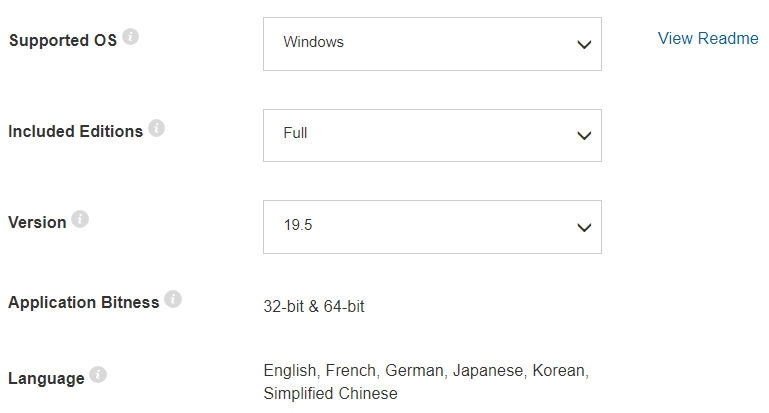
  <li>Google <a href="https://www.ni.com/en-us/support/downloads/drivers/download.ni-visa.html">NI-VISA runtime</a> and download the installer,</li>
</ol>

<p><img src="/uploads/images/2020/SoftwareDeltaZ1.png" alt="DeltaZ" /></p>

<ol>
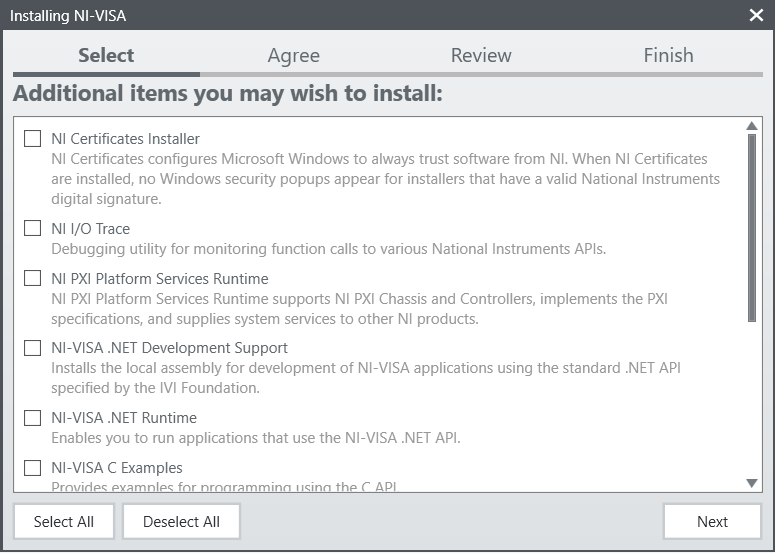
  <li>Install the NI Package Manager and open the manager. The NI-VISA runtime is needed for DeltaZ, so click “Deselect All” since we do not need the additional items. Then, click “Next”,</li>
</ol>

<p><img src="/uploads/images/2020/SoftwareDeltaZ2.png" alt="DeltaZ" /></p>

<ol>
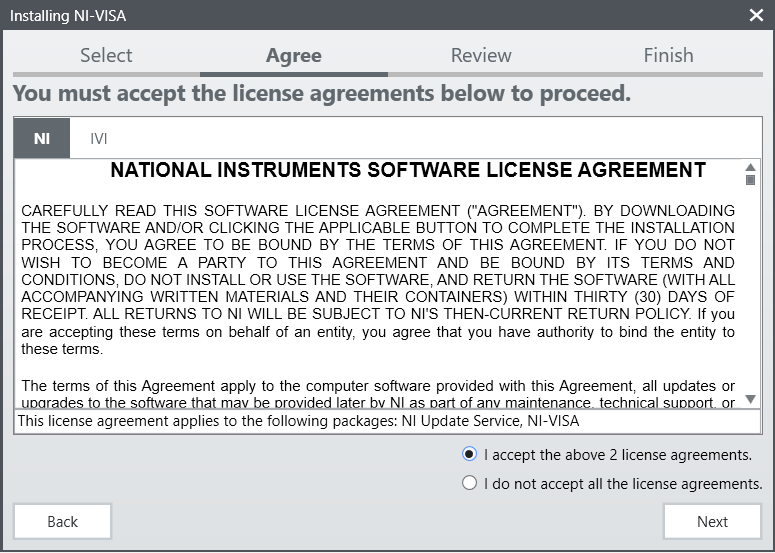
  <li>Accept the license agreements,</li>
</ol>

<p><img src="/uploads/images/2020/SoftwareDeltaZ3.png" alt="DeltaZ" /></p>

<ol>
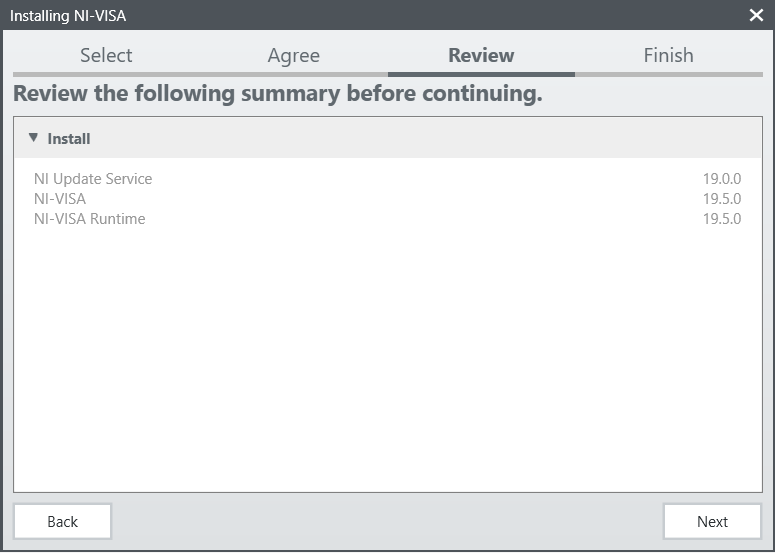
  <li>Review the installed module. “NI-VISA Runtime” is needed here,</li>
</ol>

<p><img src="/uploads/images/2020/SoftwareDeltaZ4.png" alt="DeltaZ" /></p>

<ol>
  <li>Finish the installation.</li>
</ol>

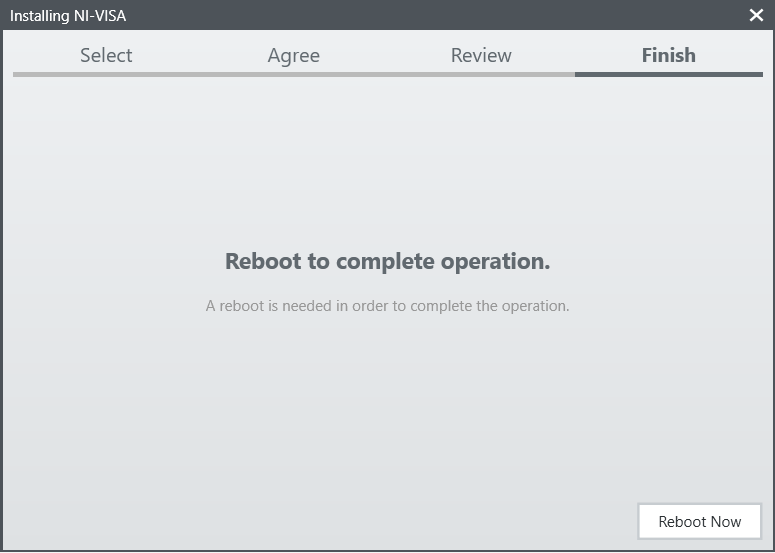
<p><img src="/uploads/images/2020/SoftwareDeltaZ5.png" alt="DeltaZ" /></p>

<hr />

<h3 id="deltaz">DeltaZ</h3>

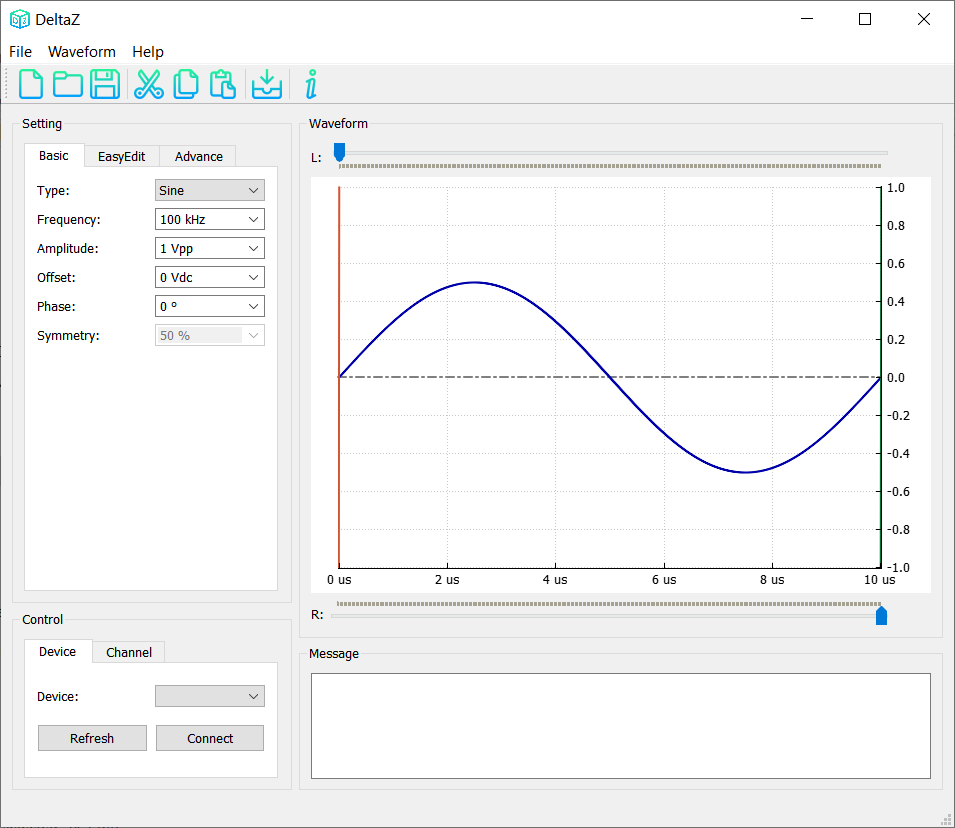
<p>After installing the NI-VISA, Open the DeltaZ and connect it to the RIGOL 800/900 series with the “Device” tab. Click the “Refresh” button to refresh the devices. Click the “Connect” button to connect the device. If everything is correct, the “Connect” button should turn to Green.</p>

<p><img src="/uploads/images/2020/SoftwareDeltaZ6.png" alt="DeltaZ" /></p>

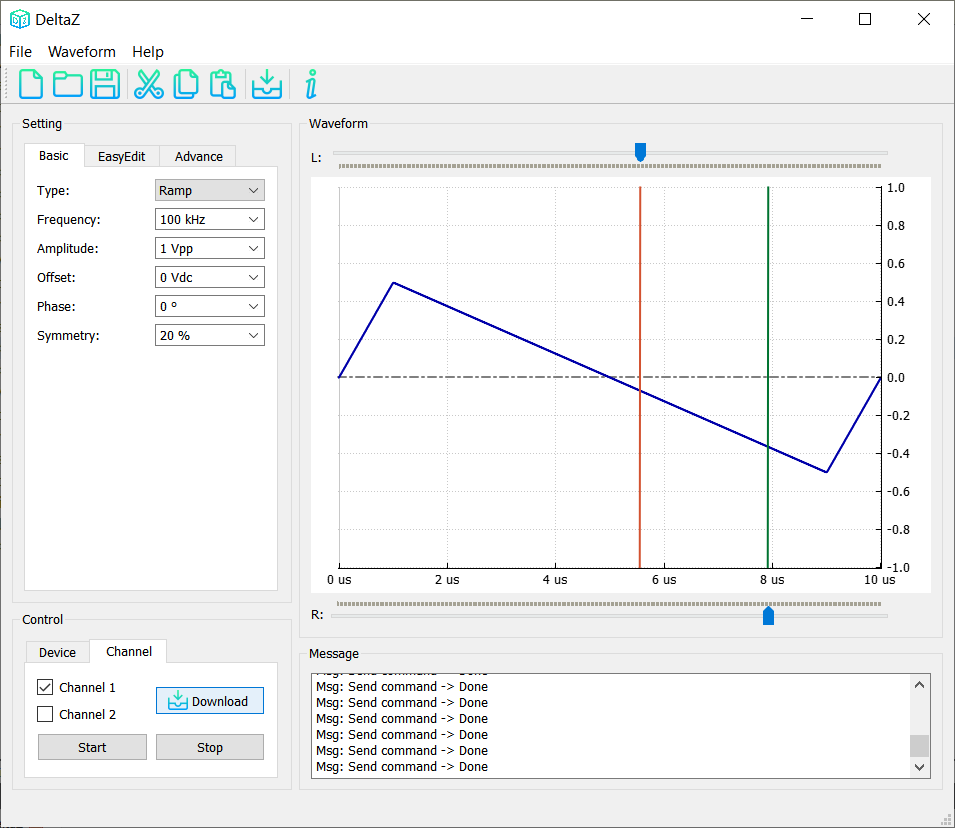
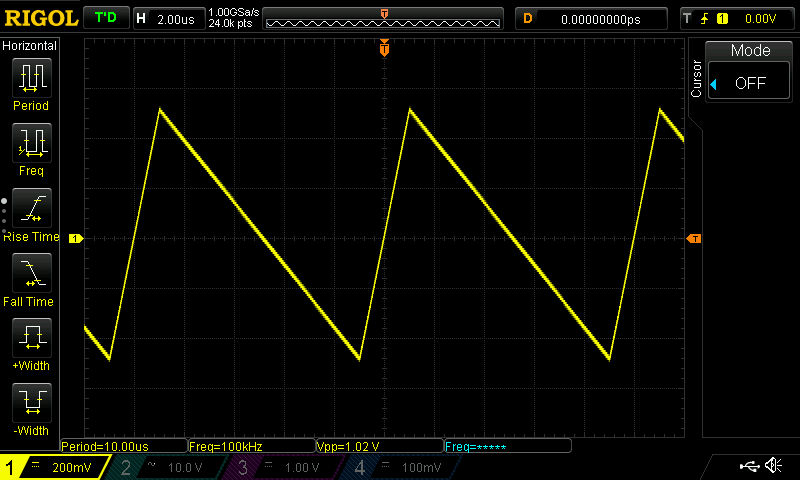
<p>The “Basic” tab provides the basic waveform, such as Sine, Square, Ramp, Pulse, Noise, and DC. The corresponding options are available based on the waveform type. Then, select the channel and click the “Download” button to download the waveform. Click the “Start” button to open the channel and output the waveform.</p>

<p><img src="/uploads/images/2020/SoftwareDeltaZ7.png" alt="DeltaZ" /></p>

<p><img src="/uploads/images/2020/SoftwareDeltaZ8.png" alt="DeltaZ" /></p>

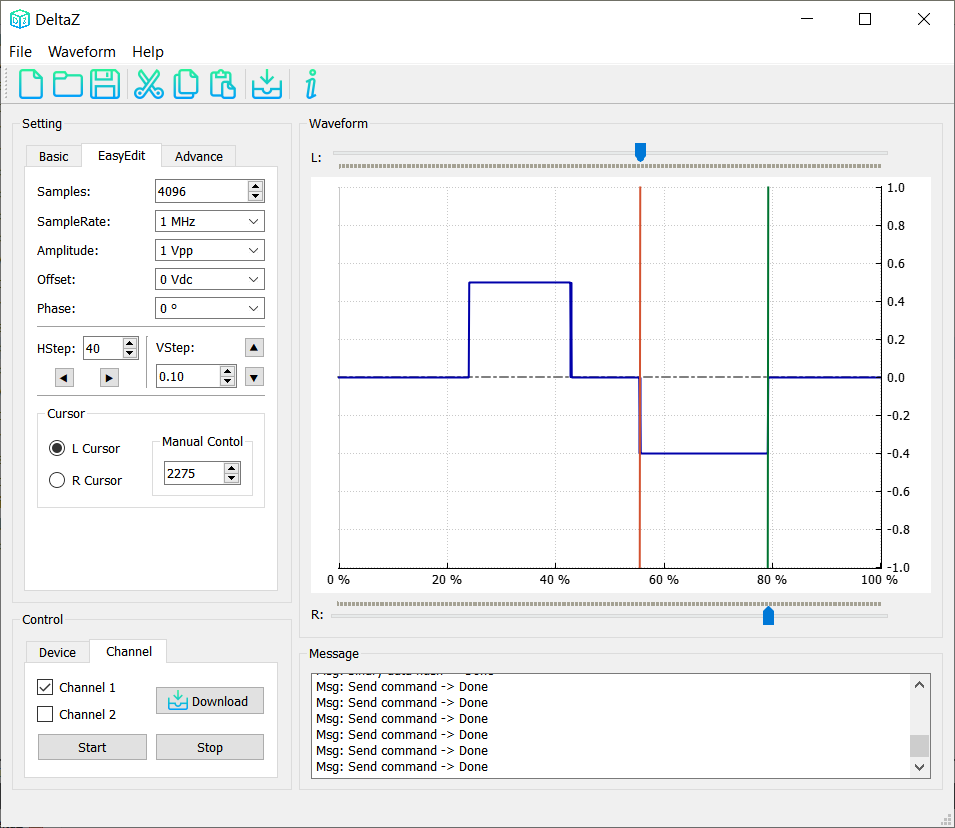
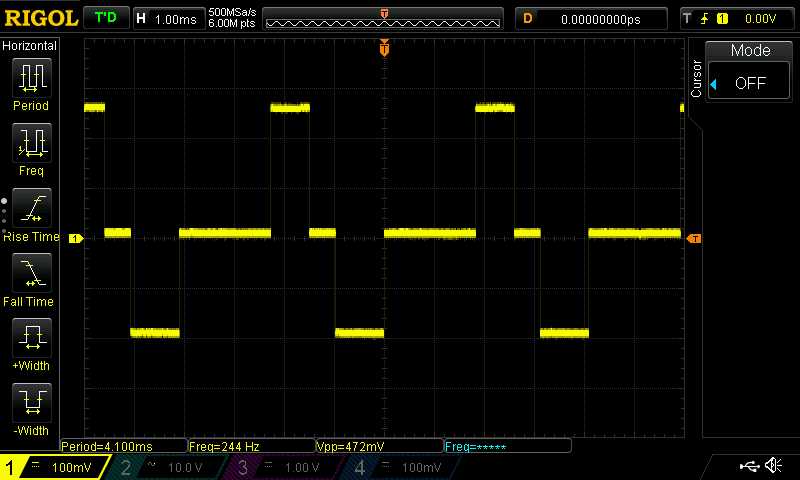
<p>The second tab and third tab are used to define custom waveform. The “EasyEdit” tab is similar to the easy edit in ArbExpress. Drag the left cursor and right cursor with horizontal sliders to select the edit region. Click the “⯅” button and “⯆” button to change the amplitude of the selected region based on “VStep” value. The left cursor and right cursor can be adjusted by clicking the “⯇”  button and “⯈” button. Use “L Cursor” and “R Cursor” to select the controlled cursor. “Manual Control” can be used to input a specific cursor position. Here is an example.</p>

<p><img src="/uploads/images/2020/SoftwareDeltaZ9.png" alt="DeltaZ" /></p>

<p><img src="/uploads/images/2020/SoftwareDeltaZ10.png" alt="DeltaZ" /></p>

<p>The “Cut”, “Copy” and “Paste” button can be used to edit the waveform <em>between the two cursors</em>. Here is an example.</p>

<p><img src="/uploads/images/2020/SoftwareDeltaZ11.png" alt="DeltaZ" /></p>

<p><img src="/uploads/images/2020/SoftwareDeltaZ12.png" alt="DeltaZ" /></p>

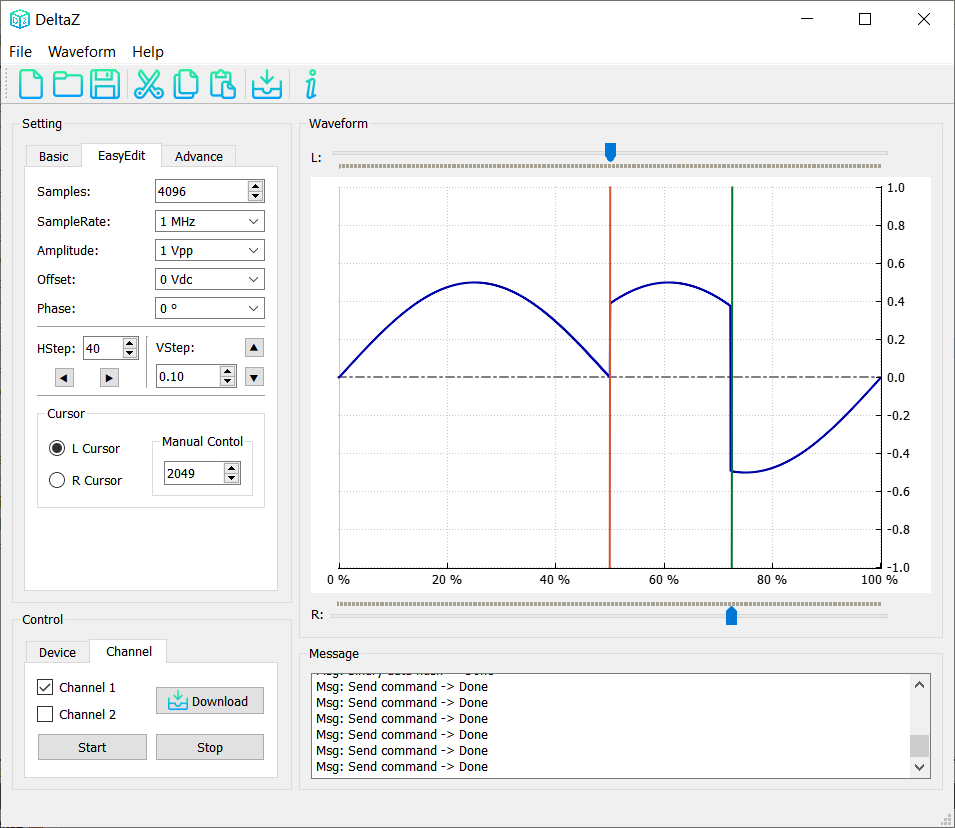
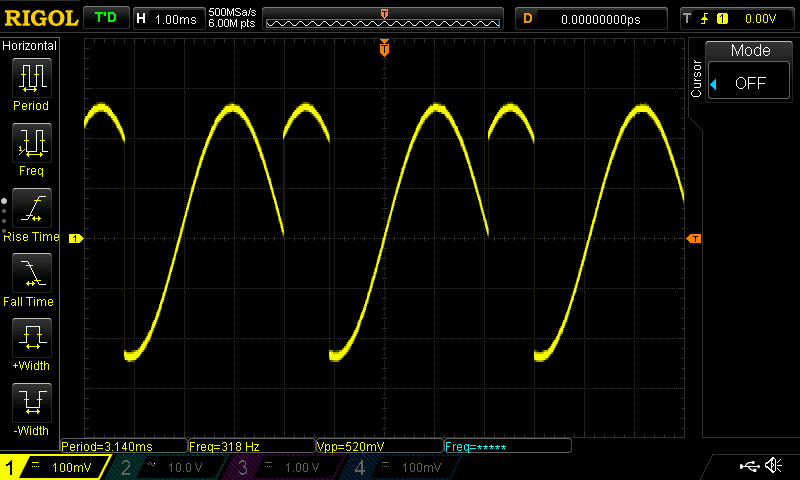
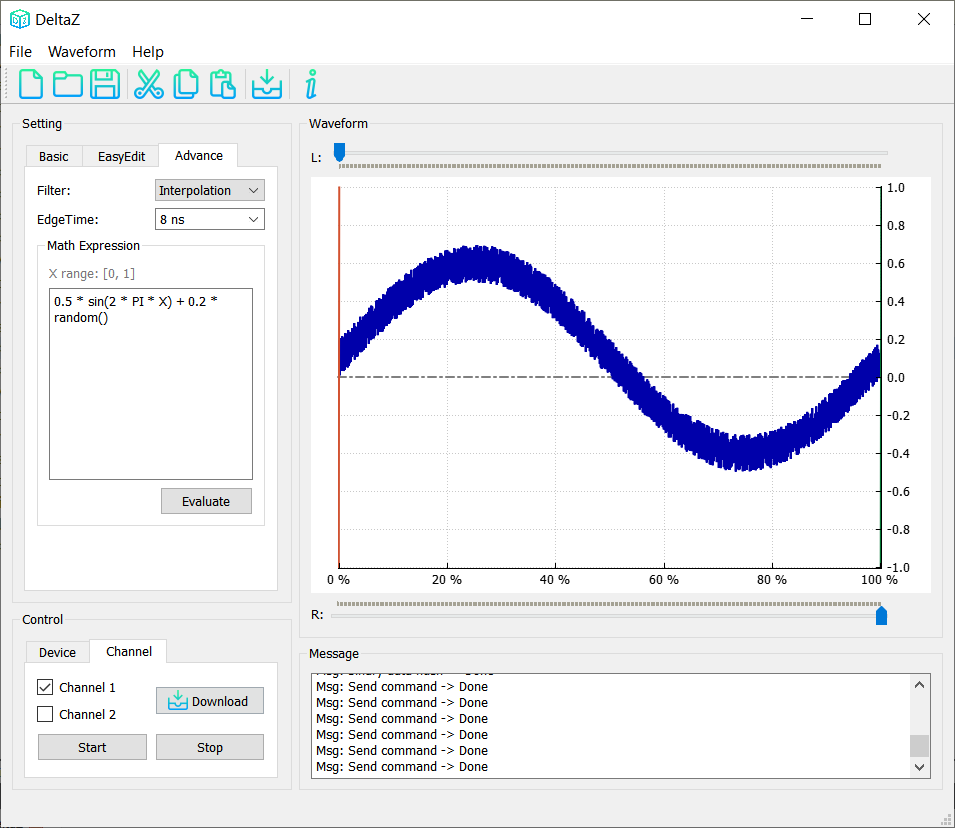
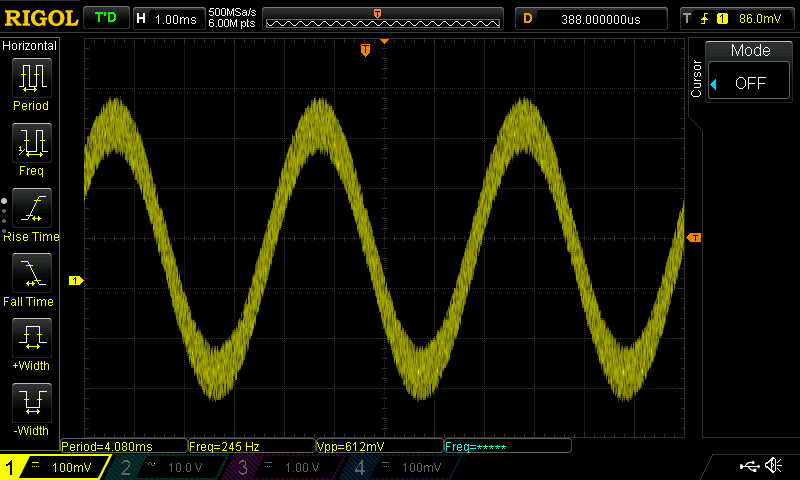
<p>The last “Advance” tab can be used to generate the waveform with math expression. The math expression supports all <a href="https://developer.mozilla.org/en-US/docs/Web/JavaScript/Reference/Global_Objects/Math">JavaScript math functions</a>. Do not include the “Math” prefix before math function and each math function should end with parentheses, such as “random()”. Here is an example.</p>

<p><img src="/uploads/images/2020/SoftwareDeltaZ13.png" alt="DeltaZ" /></p>

<p><img src="/uploads/images/2020/SoftwareDeltaZ14.png" alt="DeltaZ" /></p>

<hr />

<h3 id="disclaimer">Disclaimer</h3>

<p><img src="/uploads/images/2020/SoftwareDeltaZ15.png" alt="DeltaZ" /></p>

<blockquote>
  <p>I have put efforts into ensuring that the software works properly. Unfortunately, a full check of the software code cannot be ensured, despite my efforts, the function included in software could be functional. Therefore, the user should check the compatibility for software with the proper system, as the developer does not accept liability for <em>any damage</em> by using this software.</p>
</blockquote>]]></content><author><name>Dongping Zhu</name></author><category term="Software" /><category term="Software" /><summary type="html"><![CDATA[DeltaZ is a software to edit the arbitrary waveform on RIGOL DG800/900 series. I write some scripts to control my RIGOL DG812. Finally, I decided to pack the scripts and wrote a user interface to control the device. That is DeltaZ. Click the “DOWNLOAD” button to download the software.]]></summary></entry><entry><title type="html">LAMMPS restart example</title><link href="https://dpzhu.me/archives/lammps-restart-example.html" rel="alternate" type="text/html" title="LAMMPS restart example" /><published>2020-04-20T13:13:22+00:00</published><updated>2020-04-20T13:13:22+00:00</updated><id>https://dpzhu.me/archives/lammps-restart-example</id><content type="html" xml:base="https://dpzhu.me/archives/lammps-restart-example.html"><![CDATA[<p><img src="/uploads/images/0000/LAMMPS.jpg" alt="LAMMPS" />
LAMMPS has the capability to restart the job from the binary file. According to the description from the official website, the command restart can write out a binary restart file with the current state of the simulation every certain timestep. This command has two modes: write the binary file or the data file. If you wish to use the data file, then a convert command is needed in this scenario. Here we do not consider the data file.</p>

<!-- more -->

<p>This LAMMPS script is a simple stretch of an iron nanowire. The orientation of the iron nanowire is <code class="language-plaintext highlighter-rouge">[100](001)</code>. Due to the simple orientation, this nanowire is constructed in the LAMMPS script file. The dimension of the nanowire is 20c in the x-direction, 10c in the y-direction and 10c in the z-direction, c is the lattice constant which is set to 2.856 in the script. Note that this lattice constant is just copied from <a href="https://en.wikipedia.org/wiki/Lattice_constant">Wikipedia</a>. If you want more accurate data of the lattice constant, you can find on this <a href="http://periodictable.com/Properties/A/LatticeConstants.html">website</a>. The pair potential is the EAM potential from the LAMMPS internal potential library.</p>

<p>First, the entire system is needed to minimize the energy to get the equilibrium and rescale to 300K use the random velocity distribution. Then, a uniform strain is applied to the nanowire in the x-direction. The strain rate is maintained at 1E12 to save simulation time. Before running the simulation, the command restart 200 tmp.restart is inserted into the script, that means every 200 steps, a restart file will be written to the filesystem. Thus, we can restart this simulation with this restart binary file.</p>

<div class="language-plaintext highlighter-rouge"><div class="highlight"><pre class="highlight"><code># Deforming a Si Nanowire.

# ------------------------ INITIALIZATION ----------------------------
units        metal
boundary     p s s
atom_style   atomic
neighbor 2.0 bin 
neigh_modify delay 5 every 1 

#------------ use LAMMPS to create Iron nanowire (for test) ------------ 
lattice bcc 2.856
region whole block -10 10 -5 5 -5 5 units lattice
create_box 1 whole
region LLF block -10 10 -5 5 -5 5 units lattice
lattice bcc 2.856 orient x 1 0 0 orient y 0 1 0 orient z 0 0 1
create_atoms 1 region LLF
mass 1 55.845
atom_modify sort 0 0.0

#----------------------- assign potential ----------------------------
pair_style eam/alloy 
pair_coeff * * Fe_mm.eam.fs Fe

# ------------------------- SETTINGS ---------------------------------
thermo 100 
velocity all create 300.0 12345
thermo_style custom step temp etotal press pxx pyy pzz lx ly lz vol

minimize 1.0e-4 1.0e-6 100 1000

#--------------------------- nve ensemble ----------------------------
reset_timestep 0 
timestep 0.001
fix 1 all nve
fix 2 all temp/rescale 1 300 300 1 0.1

variable timestep equal "step" 
variable temperature equal "temp" 
variable total_energy equal "etotal" 

dump 1 all custom 1000 equilibrate.lammpstrj id type x y z 

run 3000
unfix 1
unfix 2
undump 1

#------------Deform------------------------------
variable srate equal 1.0e11
variable srate1 equal "v_srate / 1.0e12"
fix 1 all deform 1 x erate ${srate1} remap x
fix 2 all nve
fix 3 all temp/rescale 1 300 300 1 0.1

variable tmp equal "lx"
variable L0 equal ${tmp}
variable p1 equal "(lx - v_L0)/v_L0"
variable p2 equal "-pxx/10000"
variable p3 equal "-pyy/10000"
variable p4 equal "-pzz/10000"
variable p5 equal "lx"
variable p6 equal "ly"
variable p7 equal "lz"
variable p8 equal "temp"
compute 1 all pe
compute 2 all ke

fix 4 all ave/time 1 20 100 v_p1 v_p2 c_1 c_2 file tension.dat
dump 1 all custom 100 tension.lammpstrj id type x y z 

restart  200 tmp.restart
run 2000 
</code></pre></div></div>

<p>After the simulation, get the restart file “tmp.restart.5000” and use the command <code class="language-plaintext highlighter-rouge">read_restart</code> in the restart script.</p>

<blockquote>
  <p>Note that the following commands do not need to be repeated because their settings are included in the restart file: units, atom_style, special_bonds, pair_style, bond_style. However these commands do need to be used since their settings are not in the restart file: neighbor, fix, timestep.</p>
</blockquote>

<p>Actually, the <code class="language-plaintext highlighter-rouge">pair_style</code> and <code class="language-plaintext highlighter-rouge">pair_coeff</code> commands are still needed in the restart file, otherwise, LAMMPS will report <code class="language-plaintext highlighter-rouge">&lt;Error: Atom sorting has bin size = 0.0&gt;</code>. Here is the example of the restart file.</p>

<div class="language-plaintext highlighter-rouge"><div class="highlight"><pre class="highlight"><code>read_restart    tmp.restart.5000


neighbor 2.0 bin 
neigh_modify delay 5 every 1 

pair_style eam/alloy 
pair_coeff * * Fe_mm.eam.fs Fe

thermo 100 
thermo_style custom step temp etotal press pxx pyy pzz lx ly lz vol

timestep 0.001
variable srate equal 1.0e11
variable srate1 equal "v_srate / 1.0e12"
fix 1 all deform 1 x erate ${srate1} remap x
fix 2 all nve
fix 3 all temp/rescale 1 300 300 1 0.1

variable tmp equal "lx"
variable L0 equal ${tmp}
variable p1 equal "(lx - v_L0)/v_L0"
variable p2 equal "-pxx/10000"
variable p3 equal "-pyy/10000"
variable p4 equal "-pzz/10000"
variable p5 equal "lx"
variable p6 equal "ly"
variable p7 equal "lz"
variable p8 equal "temp"
compute 1 all pe
compute 2 all ke

fix 4 all ave/time 1 20 100 v_p1 v_p2 c_1 c_2 file tension.dat
dump 1 all custom 100 tension_restart.lammpstrj id type x y z 

run 2000
</code></pre></div></div>

<blockquote>
  <p>All source code is available upon request.</p>
</blockquote>]]></content><author><name>Dongping Zhu</name></author><category term="Explorations" /><category term="LAMMPS" /><summary type="html"><![CDATA[LAMMPS has the capability to restart the job from the binary file. According to the description from the official website, the command restart can write out a binary restart file with the current state of the simulation every certain timestep. This command has two modes: write the binary file or the data file. If you wish to use the data file, then a convert command is needed in this scenario. Here we do not consider the data file.]]></summary></entry><entry><title type="html">LAMMPS Plastic strain calculation</title><link href="https://dpzhu.me/archives/lammps-plastic-strain.html" rel="alternate" type="text/html" title="LAMMPS Plastic strain calculation" /><published>2020-04-20T13:13:22+00:00</published><updated>2020-04-20T13:13:22+00:00</updated><id>https://dpzhu.me/archives/lammps-plastic-strain</id><content type="html" xml:base="https://dpzhu.me/archives/lammps-plastic-strain.html"><![CDATA[<p><img src="/uploads/images/0000/LAMMPS.jpg" alt="LAMMPS" />
This post provides the approach to extract the plastic strain in MD simulation. We can compute the atom displacement as the trajectory from the MD simulation, but the strain is the concept in continuum mechanics, it is really hard to compute the tensor in a discrete system. Recently, some tools provide this function based on a theory that accounting the effects of the neighbor atoms. While considering the relative displacement with the neighbor atom and using the weight function, the deformation gradient tensor can be calculated. Therefore, the strain tensor is obtained. Plastic strain can be expressed as,</p>

<!-- more -->

\[\boldsymbol{\varepsilon}^p  = \boldsymbol{\varepsilon} - \boldsymbol{\varepsilon}^e\]

<p>so two strain tensor should be generated in the simulation data: total strain tensor $\boldsymbol{\varepsilon}$ and the elastic strain tensor $\boldsymbol{\varepsilon}^e$. Obviously, LAMMPS data file does not provide such information. Here I use the OVITO to get this data.</p>

<p>OVITO provide two modifiers, the first one is the “Atomic strain” and the second one is the “Elastic strain calculation”. Both of them provide the deformation gradient tensor and the strain tensor data. But I found there are some bugs for strain tensor output in OVITO, so I use the deformation gradient tensor data and computing the strain tensor with a Python script.</p>

<p>Let us start by running a Python script with the OVITO interpreter. Get into your OVITO installation folder and find the “ovitos.exe” in this directory. This is the Python interpreter. Actually, OVITO has integrated the Python interpreter, so we do not need to provide an extra Python interpreter. However, there is a drawback of this internal Python interpreter, the package in the internal interpreter just contains the “Numpy” and “Matplotlib”. So if you need the extra function from the Python package. I think you need just use the internal interpreter as the start.</p>

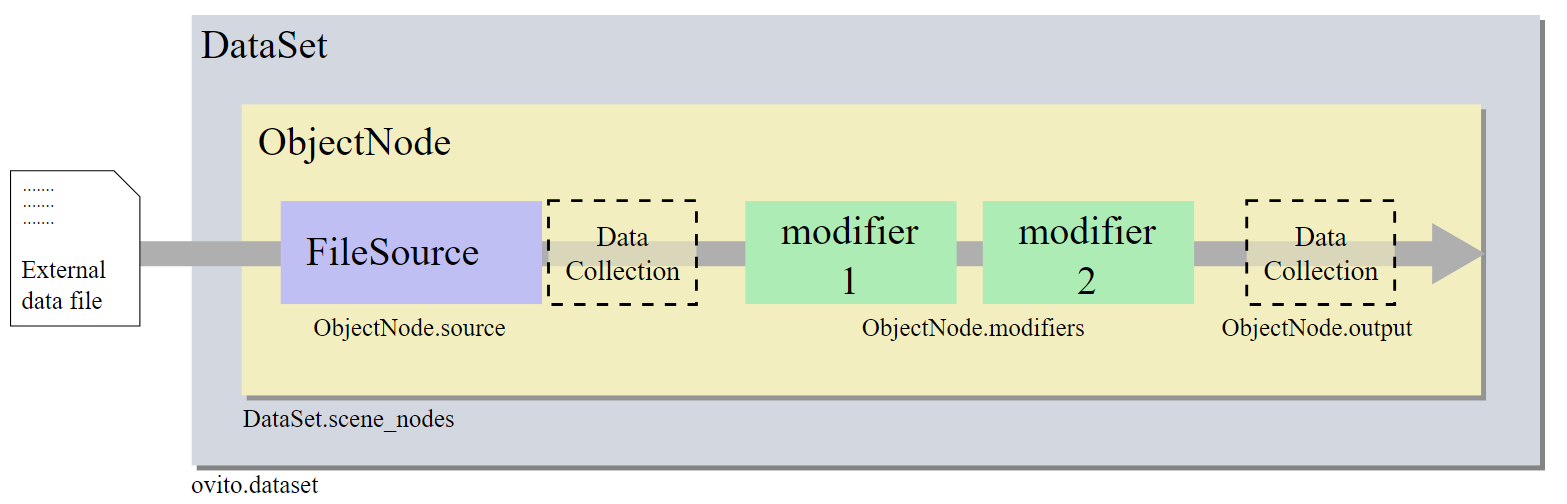
<p>The following image is from the official website of the OVITO documentation. If we get the object of the “ObjectNode”, then we can handle all data and modifiers in the pipeline.</p>

<p><img src="/uploads/images/2020/PlasticStrainMD1.png" alt="Pipeline" /></p>

<p>Fortunately, the OVITO import_file function provides access to the “ObjectNode”. Now, we do some basic operations and define some functions before we try to get the deformation gradient tensors.</p>

<div class="language-python highlighter-rouge"><div class="highlight"><pre class="highlight"><code><span class="c1">#Import several modules.
</span><span class="kn">import</span> <span class="nn">os</span>
<span class="kn">import</span> <span class="nn">sys</span>
<span class="kn">import</span> <span class="nn">numpy</span> <span class="k">as</span> <span class="n">np</span>
<span class="k">try</span><span class="p">:</span>
    <span class="kn">from</span> <span class="nn">ovito.io</span> <span class="kn">import</span> <span class="o">*</span> <span class="c1">#Import the Ovito module
</span>    <span class="kn">from</span> <span class="nn">ovito.modifiers</span> <span class="kn">import</span> <span class="o">*</span>
<span class="k">except</span><span class="p">:</span>
    <span class="k">pass</span>
</code></pre></div></div>

<p>This part import several modules and try to import the “ovito.io” module. The Python script can just be run by the “ovitos.exe”, so use try except to avoid the error when running this script directly from the interpreter.</p>

<p>The first function is to form the Voigt notation to a matrix form. You can get more information about the Ovigt notation from the Wikipedia here. In general, since several tensors, such as the stress tensors, strain tensor and stiffness tensor, have symmetric properties,  Voigt notation simplifies the expression to a vector to reduce the computational cost. For example, If we get the principal strain tensor and use Voigt notation to express them, the plastic flow rule can be simplified. Here is the matForm function,</p>

<div class="language-python highlighter-rouge"><div class="highlight"><pre class="highlight"><code><span class="k">def</span> <span class="nf">matForm</span><span class="p">(</span><span class="n">voigtM</span><span class="p">):</span>
    <span class="k">if</span> <span class="nb">type</span><span class="p">(</span><span class="n">voigtM</span><span class="p">)</span> <span class="ow">is</span> <span class="ow">not</span> <span class="n">np</span><span class="p">.</span><span class="n">ndarray</span><span class="p">:</span> <span class="c1">#check the type of voigtM
</span>        <span class="n">sys</span><span class="p">.</span><span class="nb">exit</span><span class="p">(</span><span class="s">"matForm: the parameter should be &lt;numpy.ndarray&gt;"</span><span class="p">)</span>
    <span class="k">elif</span> <span class="n">voigtM</span><span class="p">.</span><span class="n">ndim</span> <span class="o">!=</span> <span class="mi">1</span><span class="p">:</span> <span class="c1">#check the dim of voigtM
</span>        <span class="n">sys</span><span class="p">.</span><span class="nb">exit</span><span class="p">(</span><span class="s">"matForm: the parameter should be 1 dimension"</span><span class="p">)</span>
    <span class="n">outputM</span> <span class="o">=</span> <span class="n">np</span><span class="p">.</span><span class="n">zeros</span><span class="p">(</span><span class="n">shape</span><span class="o">=</span><span class="p">(</span><span class="mi">3</span><span class="p">,</span><span class="mi">3</span><span class="p">))</span>
    <span class="k">if</span> <span class="nb">len</span><span class="p">(</span><span class="n">voigtM</span><span class="p">)</span> <span class="o">==</span> <span class="mi">6</span><span class="p">:</span> <span class="c1"># strain tensor
</span>        <span class="n">outputM</span><span class="p">[</span><span class="mi">0</span><span class="p">,</span><span class="mi">0</span><span class="p">]</span> <span class="o">=</span> <span class="n">voigtM</span><span class="p">[</span><span class="mi">0</span><span class="p">]</span>
        <span class="n">outputM</span><span class="p">[</span><span class="mi">1</span><span class="p">,</span><span class="mi">1</span><span class="p">]</span> <span class="o">=</span> <span class="n">voigtM</span><span class="p">[</span><span class="mi">1</span><span class="p">]</span>
        <span class="n">outputM</span><span class="p">[</span><span class="mi">2</span><span class="p">,</span><span class="mi">2</span><span class="p">]</span> <span class="o">=</span> <span class="n">voigtM</span><span class="p">[</span><span class="mi">2</span><span class="p">]</span>
        <span class="n">outputM</span><span class="p">[</span><span class="mi">0</span><span class="p">,</span><span class="mi">1</span><span class="p">]</span> <span class="o">=</span> <span class="n">voigtM</span><span class="p">[</span><span class="mi">3</span><span class="p">]</span>
        <span class="n">outputM</span><span class="p">[</span><span class="mi">0</span><span class="p">,</span><span class="mi">2</span><span class="p">]</span> <span class="o">=</span> <span class="n">voigtM</span><span class="p">[</span><span class="mi">4</span><span class="p">]</span>
        <span class="n">outputM</span><span class="p">[</span><span class="mi">1</span><span class="p">,</span><span class="mi">2</span><span class="p">]</span> <span class="o">=</span> <span class="n">voigtM</span><span class="p">[</span><span class="mi">5</span><span class="p">]</span>
        <span class="n">outputM</span><span class="p">[</span><span class="mi">1</span><span class="p">,</span><span class="mi">0</span><span class="p">]</span> <span class="o">=</span> <span class="n">voigtM</span><span class="p">[</span><span class="mi">3</span><span class="p">]</span>
        <span class="n">outputM</span><span class="p">[</span><span class="mi">2</span><span class="p">,</span><span class="mi">0</span><span class="p">]</span> <span class="o">=</span> <span class="n">voigtM</span><span class="p">[</span><span class="mi">4</span><span class="p">]</span>
        <span class="n">outputM</span><span class="p">[</span><span class="mi">2</span><span class="p">,</span><span class="mi">1</span><span class="p">]</span> <span class="o">=</span> <span class="n">voigtM</span><span class="p">[</span><span class="mi">5</span><span class="p">]</span>
    <span class="k">if</span> <span class="nb">len</span><span class="p">(</span><span class="n">voigtM</span><span class="p">)</span> <span class="o">==</span> <span class="mi">9</span><span class="p">:</span> <span class="c1">#Deformation gradient tensor
</span>        <span class="n">outputM</span><span class="p">[</span><span class="mi">0</span><span class="p">,</span><span class="mi">0</span><span class="p">]</span> <span class="o">=</span> <span class="n">voigtM</span><span class="p">[</span><span class="mi">0</span><span class="p">]</span>
        <span class="n">outputM</span><span class="p">[</span><span class="mi">1</span><span class="p">,</span><span class="mi">0</span><span class="p">]</span> <span class="o">=</span> <span class="n">voigtM</span><span class="p">[</span><span class="mi">1</span><span class="p">]</span>
        <span class="n">outputM</span><span class="p">[</span><span class="mi">2</span><span class="p">,</span><span class="mi">0</span><span class="p">]</span> <span class="o">=</span> <span class="n">voigtM</span><span class="p">[</span><span class="mi">2</span><span class="p">]</span>
        <span class="n">outputM</span><span class="p">[</span><span class="mi">0</span><span class="p">,</span><span class="mi">1</span><span class="p">]</span> <span class="o">=</span> <span class="n">voigtM</span><span class="p">[</span><span class="mi">3</span><span class="p">]</span>
        <span class="n">outputM</span><span class="p">[</span><span class="mi">1</span><span class="p">,</span><span class="mi">1</span><span class="p">]</span> <span class="o">=</span> <span class="n">voigtM</span><span class="p">[</span><span class="mi">4</span><span class="p">]</span>
        <span class="n">outputM</span><span class="p">[</span><span class="mi">2</span><span class="p">,</span><span class="mi">1</span><span class="p">]</span> <span class="o">=</span> <span class="n">voigtM</span><span class="p">[</span><span class="mi">5</span><span class="p">]</span>
        <span class="n">outputM</span><span class="p">[</span><span class="mi">0</span><span class="p">,</span><span class="mi">2</span><span class="p">]</span> <span class="o">=</span> <span class="n">voigtM</span><span class="p">[</span><span class="mi">6</span><span class="p">]</span>
        <span class="n">outputM</span><span class="p">[</span><span class="mi">1</span><span class="p">,</span><span class="mi">2</span><span class="p">]</span> <span class="o">=</span> <span class="n">voigtM</span><span class="p">[</span><span class="mi">7</span><span class="p">]</span>
        <span class="n">outputM</span><span class="p">[</span><span class="mi">2</span><span class="p">,</span><span class="mi">2</span><span class="p">]</span> <span class="o">=</span> <span class="n">voigtM</span><span class="p">[</span><span class="mi">8</span><span class="p">]</span>
    <span class="k">return</span> <span class="n">outputM</span>
</code></pre></div></div>

<p>Note that the order in OVITO is different from that of the traditional Voigt notation. Usually, Voigt notation treats the order of a strain tensor as,</p>

\[\left( \varepsilon_{11}, \varepsilon_{22}, \varepsilon_{33}, \varepsilon_{23}, \varepsilon_{13}, \varepsilon_{12} \right)\]

<p>but in OVITO, the order will be,</p>

\[\left( \varepsilon_{11}, \varepsilon_{22}, \varepsilon_{33}, \varepsilon_{12}, \varepsilon_{13}, \varepsilon_{23} \right)\]

<p>Then, the following functions define the Almansi tensor and Green tensor,</p>

<div class="language-python highlighter-rouge"><div class="highlight"><pre class="highlight"><code><span class="k">def</span> <span class="nf">almansiStrain</span><span class="p">(</span><span class="n">defGradM</span><span class="p">):</span>
    <span class="n">almansiStrain</span> <span class="o">=</span> <span class="n">np</span><span class="p">.</span><span class="n">zeros</span><span class="p">(</span><span class="n">shape</span><span class="o">=</span><span class="p">(</span><span class="mi">3</span><span class="p">,</span><span class="mi">3</span><span class="p">))</span> <span class="c1">#Start a empty matrix
</span>    <span class="n">identityM</span> <span class="o">=</span> <span class="n">np</span><span class="p">.</span><span class="n">identity</span><span class="p">(</span><span class="mi">3</span><span class="p">)</span> <span class="c1">#Set the identity matrix
</span>    <span class="c1"># Get the rank of defGradM
</span>    <span class="k">if</span> <span class="n">np</span><span class="p">.</span><span class="n">linalg</span><span class="p">.</span><span class="n">matrix_rank</span><span class="p">(</span><span class="n">defGradM</span><span class="p">)</span> <span class="o">!=</span> <span class="mi">3</span><span class="p">:</span> 
        <span class="k">return</span> <span class="n">almansiStrain</span>
    <span class="k">try</span><span class="p">:</span>
        <span class="n">invdefGradM</span> <span class="o">=</span> <span class="n">np</span><span class="p">.</span><span class="n">linalg</span><span class="p">.</span><span class="n">inv</span><span class="p">(</span><span class="n">defGradM</span><span class="p">)</span>
    <span class="k">except</span> <span class="n">np</span><span class="p">.</span><span class="n">linalg</span><span class="p">.</span><span class="n">LinAlgError</span><span class="p">:</span>
        <span class="c1"># Not invertible. Skip this one.almansiStrain
</span>        <span class="k">return</span> <span class="n">almansiStrain</span>
    <span class="k">else</span><span class="p">:</span>
        <span class="n">almansiStrain</span> <span class="o">=</span> <span class="mf">1.0</span> <span class="o">/</span> <span class="mf">2.0</span> <span class="o">*</span> <span class="p">(</span><span class="n">identityM</span> <span class="o">-</span> \
                        <span class="n">np</span><span class="p">.</span><span class="n">dot</span><span class="p">(</span><span class="n">np</span><span class="p">.</span><span class="n">transpose</span><span class="p">(</span><span class="n">invdefGradM</span><span class="p">),</span><span class="n">invdefGradM</span><span class="p">))</span>
    <span class="k">return</span> <span class="n">almansiStrain</span>

<span class="k">def</span> <span class="nf">greenStrain</span><span class="p">(</span><span class="n">defGradM</span><span class="p">):</span>
    <span class="n">greenStrain</span> <span class="o">=</span> <span class="n">np</span><span class="p">.</span><span class="n">zeros</span><span class="p">(</span><span class="n">shape</span><span class="o">=</span><span class="p">(</span><span class="mi">3</span><span class="p">,</span><span class="mi">3</span><span class="p">))</span>
    <span class="n">identityM</span> <span class="o">=</span> <span class="n">np</span><span class="p">.</span><span class="n">identity</span><span class="p">(</span><span class="mi">3</span><span class="p">)</span>
    <span class="n">greenStrain</span> <span class="o">=</span> <span class="mf">1.0</span> <span class="o">/</span> <span class="mf">2.0</span> <span class="o">*</span> <span class="p">(</span><span class="n">np</span><span class="p">.</span><span class="n">dot</span><span class="p">(</span><span class="n">np</span><span class="p">.</span><span class="n">transpose</span><span class="p">(</span><span class="n">defGradM</span><span class="p">),</span>\
                  <span class="n">defGradM</span><span class="p">)</span> <span class="o">-</span> <span class="n">identityM</span><span class="p">)</span>
    <span class="k">return</span> <span class="n">greenStrain</span>
</code></pre></div></div>

<p>Green tensor can be written as,</p>

\[{\bf E} = {1 \over 2} \left( {\bf F}^T \cdot {\bf F} - {\bf I} \right)\]

<p>and Almansi tesnor is,</p>

\[{\bf e} = \frac{1}{2} ({\bf I} - {\bf F}^{-T} \! \cdot {\bf F}^{-1})\]

<p>The defination can be found in the continuum mechanics website.</p>

<p>After both elastic strain tensor and the total strain tensor are obtained from the calculation, the plastic strain tensor should be,</p>

<div class="language-python highlighter-rouge"><div class="highlight"><pre class="highlight"><code><span class="k">def</span> <span class="nf">plasticStrain</span><span class="p">(</span><span class="n">elasticDefGrad</span><span class="p">,</span> <span class="n">totalDefGrad</span><span class="p">):</span>
    <span class="c1">#Compute the plastic strain tensor: totalStrain - elasticStrain
</span>    <span class="n">elasticAlmansiStrain</span> <span class="o">=</span> <span class="n">almansiStrain</span><span class="p">(</span><span class="n">matForm</span><span class="p">(</span><span class="n">elasticDefGrad</span><span class="p">))</span>
    <span class="n">totalAlmansiStrain</span> <span class="o">=</span> <span class="n">almansiStrain</span><span class="p">(</span><span class="n">matForm</span><span class="p">(</span><span class="n">totalDefGrad</span><span class="p">))</span>
    <span class="n">plasticAlmansiStrain</span> <span class="o">=</span> <span class="n">totalAlmansiStrain</span> <span class="o">-</span> <span class="n">elasticAlmansiStrain</span>
    <span class="k">return</span> <span class="n">plasticAlmansiStrain</span>
</code></pre></div></div>

<p>The last thing here is to turn the matrix form to Ovigt notation since we need to save the plastic strain tensor,</p>

<div class="language-python highlighter-rouge"><div class="highlight"><pre class="highlight"><code><span class="k">def</span> <span class="nf">matStrainToLine</span><span class="p">(</span><span class="n">mat</span><span class="p">):</span>
    <span class="n">voigtForm</span> <span class="o">=</span> <span class="n">np</span><span class="p">.</span><span class="n">empty</span><span class="p">((</span><span class="mi">1</span><span class="p">,</span><span class="mi">6</span><span class="p">),</span> <span class="nb">float</span><span class="p">)</span>
    <span class="n">voigtForm</span><span class="p">[</span><span class="mi">0</span><span class="p">,</span><span class="mi">0</span><span class="p">]</span> <span class="o">=</span> <span class="n">mat</span><span class="p">[</span><span class="mi">0</span><span class="p">,</span><span class="mi">0</span><span class="p">]</span>
    <span class="n">voigtForm</span><span class="p">[</span><span class="mi">0</span><span class="p">,</span><span class="mi">1</span><span class="p">]</span> <span class="o">=</span> <span class="n">mat</span><span class="p">[</span><span class="mi">1</span><span class="p">,</span><span class="mi">1</span><span class="p">]</span>
    <span class="n">voigtForm</span><span class="p">[</span><span class="mi">0</span><span class="p">,</span><span class="mi">2</span><span class="p">]</span> <span class="o">=</span> <span class="n">mat</span><span class="p">[</span><span class="mi">2</span><span class="p">,</span><span class="mi">2</span><span class="p">]</span>
    <span class="n">voigtForm</span><span class="p">[</span><span class="mi">0</span><span class="p">,</span><span class="mi">3</span><span class="p">]</span> <span class="o">=</span> <span class="n">mat</span><span class="p">[</span><span class="mi">0</span><span class="p">,</span><span class="mi">1</span><span class="p">]</span>
    <span class="n">voigtForm</span><span class="p">[</span><span class="mi">0</span><span class="p">,</span><span class="mi">4</span><span class="p">]</span> <span class="o">=</span> <span class="n">mat</span><span class="p">[</span><span class="mi">0</span><span class="p">,</span><span class="mi">2</span><span class="p">]</span>
    <span class="n">voigtForm</span><span class="p">[</span><span class="mi">0</span><span class="p">,</span><span class="mi">5</span><span class="p">]</span> <span class="o">=</span> <span class="n">mat</span><span class="p">[</span><span class="mi">1</span><span class="p">,</span><span class="mi">2</span><span class="p">]</span>
    <span class="k">return</span> <span class="n">voigtForm</span>
</code></pre></div></div>

<p>Now, let us set the working directory and the main function,</p>

<div class="language-python highlighter-rouge"><div class="highlight"><pre class="highlight"><code><span class="c1">#######################################################
#Set the parameters
#######################################################
#Set file path.
</span><span class="n">workDir</span> <span class="o">=</span> <span class="s">"/Users/zhudongping/Documents/Research/Item2/"</span>
<span class="n">inputFileName</span> <span class="o">=</span> <span class="s">"tension.lammpstrj"</span>
<span class="n">outputFrameSeq</span> <span class="o">=</span> <span class="nb">list</span><span class="p">(</span><span class="nb">range</span><span class="p">(</span><span class="mi">0</span><span class="p">,</span><span class="mi">85</span><span class="p">,</span><span class="mi">5</span><span class="p">))</span><span class="o">+</span><span class="nb">list</span><span class="p">(</span><span class="nb">range</span><span class="p">(</span><span class="mi">3</span><span class="p">,</span><span class="mi">85</span><span class="p">,</span><span class="mi">5</span><span class="p">))</span>
<span class="c1">#outputFrameSeq = [43]
</span><span class="n">atomCutOffDist</span> <span class="o">=</span> <span class="mf">5.5</span>
<span class="n">atomLatticeConst</span> <span class="o">=</span> <span class="mf">2.8665</span>
<span class="k">try</span><span class="p">:</span>
    <span class="n">atomLatticeType</span> <span class="o">=</span> <span class="n">ElasticStrainModifier</span><span class="p">.</span><span class="n">Lattice</span><span class="p">.</span><span class="n">BCC</span>
<span class="k">except</span><span class="p">:</span>
    <span class="k">pass</span>
<span class="k">if</span> <span class="n">__name__</span> <span class="o">==</span> <span class="s">'__main__'</span><span class="p">:</span>
    <span class="k">try</span><span class="p">:</span>
        <span class="n">main</span><span class="p">()</span>
    <span class="k">except</span><span class="p">:</span>
        <span class="k">print</span><span class="p">(</span><span class="s">'=================ATTENTION==================='</span><span class="p">)</span>
        <span class="k">print</span><span class="p">(</span><span class="s">'Please run this script with Ovito interpreter'</span><span class="p">)</span>
        <span class="k">print</span><span class="p">(</span><span class="s">'============================================='</span><span class="p">)</span>
</code></pre></div></div>

<blockquote>
  <p>All source code is available upon request.</p>
</blockquote>]]></content><author><name>Dongping Zhu</name></author><category term="Explorations" /><category term="LAMMPS" /><summary type="html"><![CDATA[This post provides the approach to extract the plastic strain in MD simulation. We can compute the atom displacement as the trajectory from the MD simulation, but the strain is the concept in continuum mechanics, it is really hard to compute the tensor in a discrete system. Recently, some tools provide this function based on a theory that accounting the effects of the neighbor atoms. While considering the relative displacement with the neighbor atom and using the weight function, the deformation gradient tensor can be calculated. Therefore, the strain tensor is obtained. Plastic strain can be expressed as,]]></summary></entry></feed>